CodeInterview assessments
Last updated: August 19, 2026
Connecting CodeInterview lets you send its technical coding assessments from inside Kula. The candidate takes the test in CodeInterview, and the scored report comes back to their profile on its own — nothing to export or re-upload.
Who can integrate it: Super Admin, Admin
Who can send tests: Anyone on the job's hiring team as a recruiter, hiring manager or coordinator
How to Connect CodeInterview
Connect CodeInterview on the integrations page — see [Connecting CodeInterview with Kula]for the steps. If it isn't connected, ask an admin.
Once connected, Kula reads the assessments set up in your CodeInterview account so you can choose them by name.
Two ways to send an assessment
Route | Best for |
|---|---|
From the candidate | One person at a time — an extra check after an interview, or a candidate who came in another way. |
Through the interview plan | High-volume roles where every candidate has to clear the same technical bar. |
Add it to the interview plan
Add a CodeInterview assessment activity to the stage you want, then pick the test, the reviewers who'll score it, and the scorecard they'll fill in. Tests come from the RemoteInterview section of your CodeInterview account.
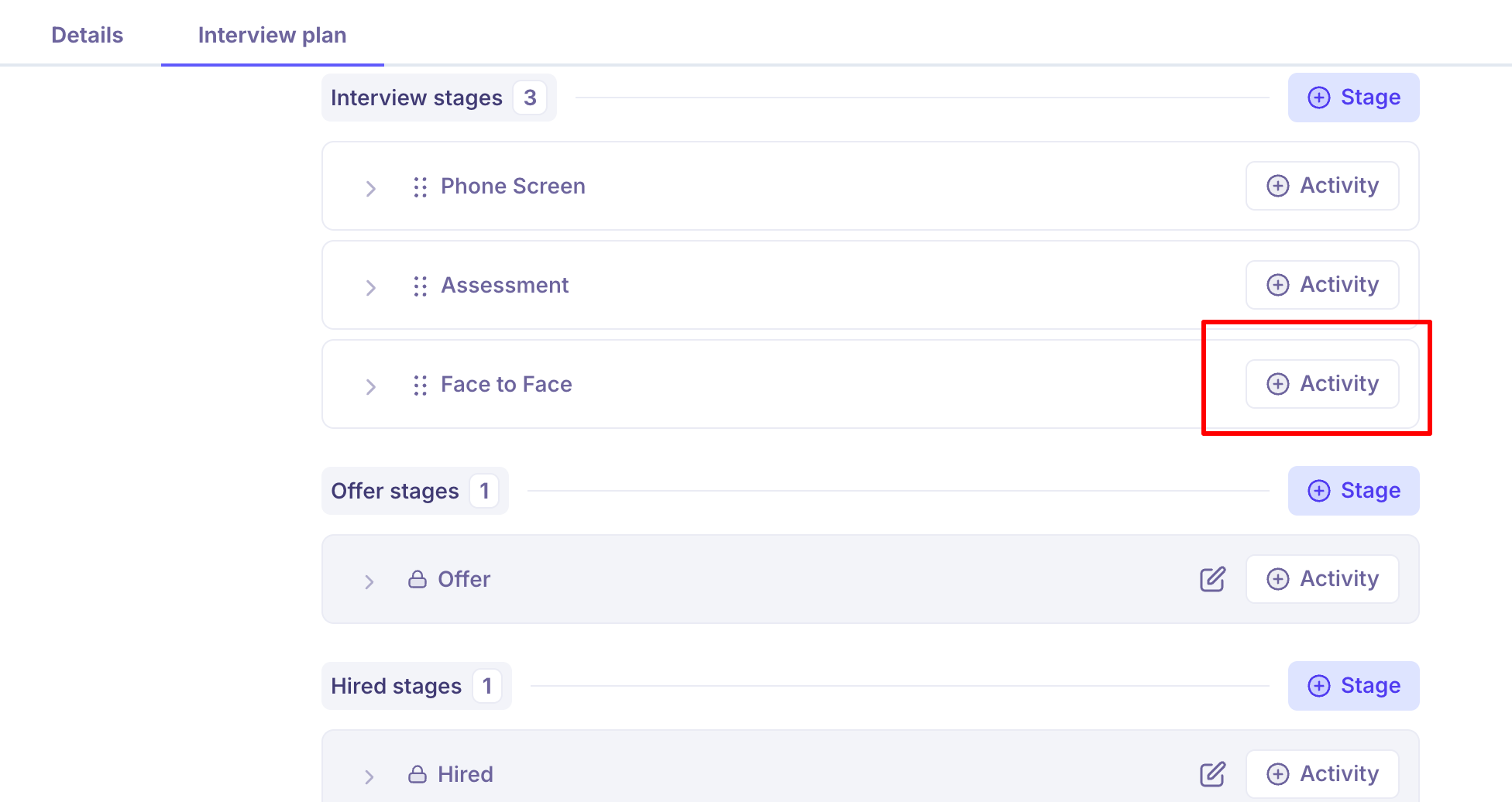
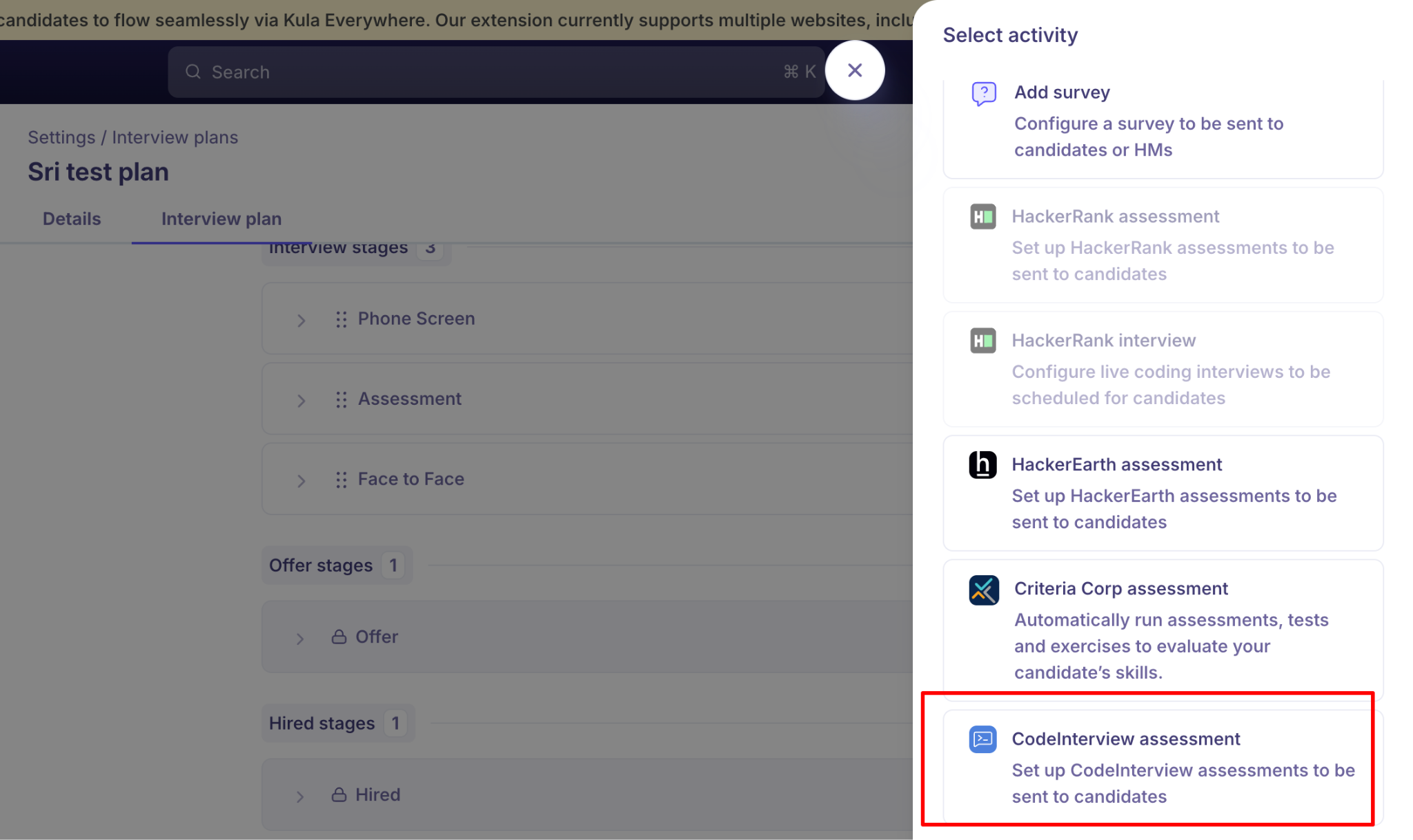
Adding activities to a stage is covered in [Creating an interview plan].
How to Send CodeInterview assessment to a candidate
Open the candidate.
From their actions menu, choose the CodeInterview assessment action.
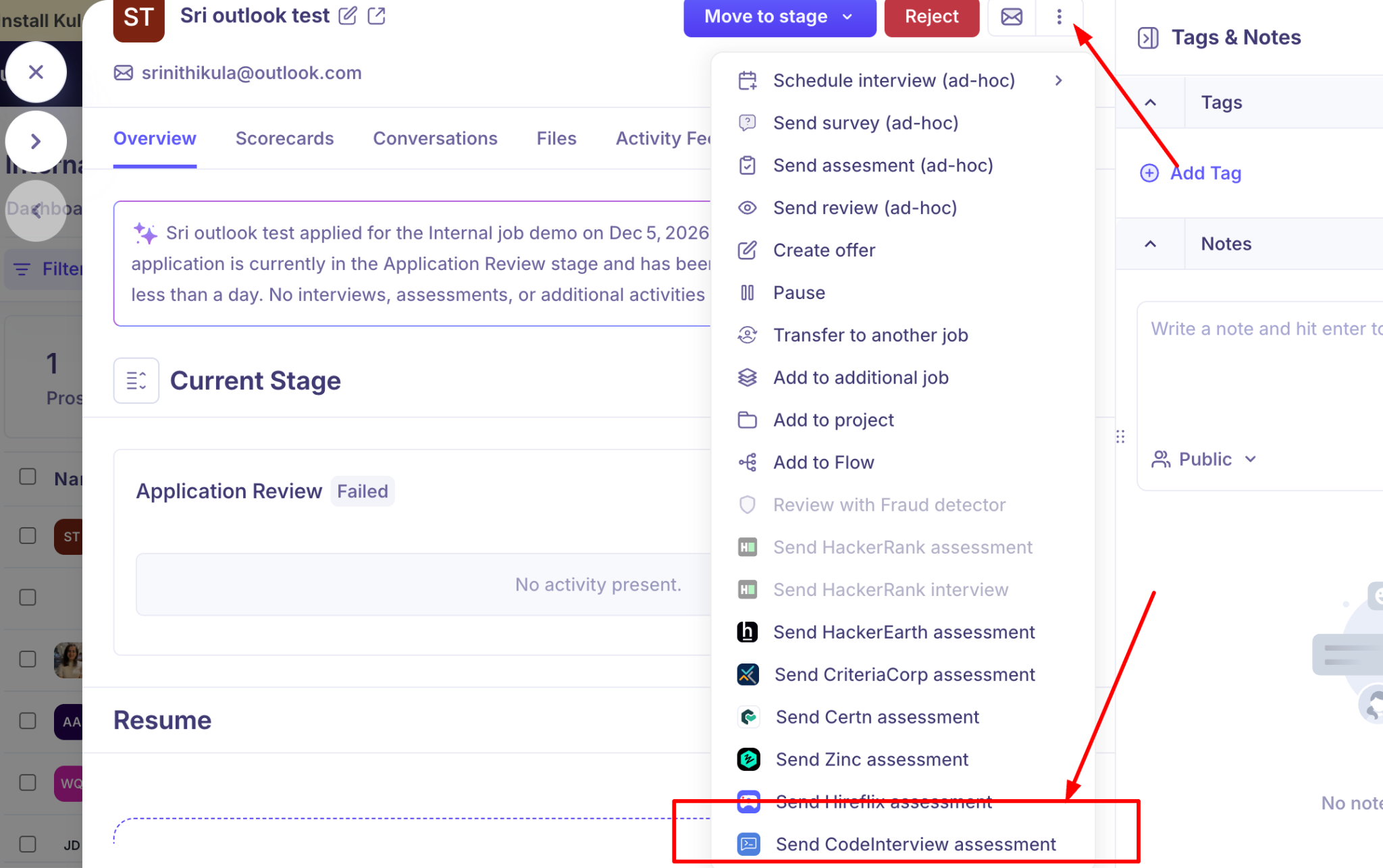
On Details, choose the reviewer(s) who'll score the result, and pick the assessment to send.
On Scorecard, set the scorecard those reviewers will fill in.
Send.
The candidate gets an invitation and takes the test in CodeInterview. There's nothing for them to set up — no account to create on your side or theirs beyond the invitation itself.
What happens next: Assessment status
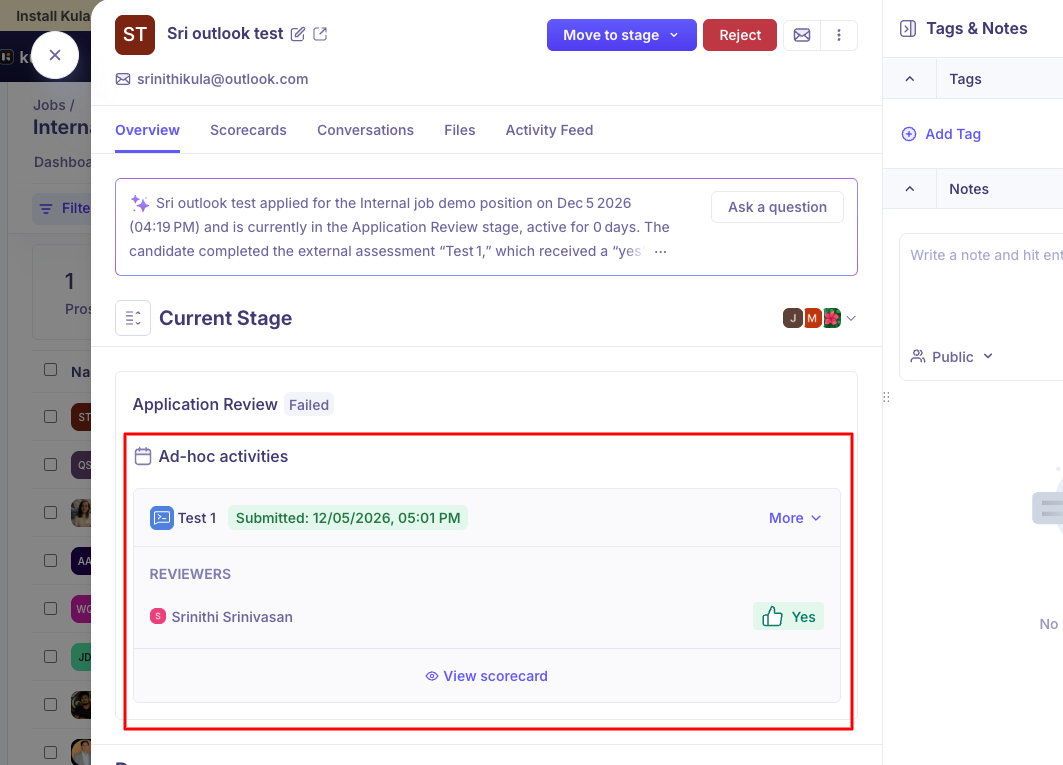
On the candidate's Overview tab, the assessment sits on its stage — under Ad-hoc activities if it was sent as a one-off. You'll see the test name with a Submitted timestamp, the reviewers underneath with the rating each gave, and View scorecard to read their full feedback.
The scored report syncs the moment the candidate submits, so there's nothing to fetch. Kula's summary at the top of the profile also picks up the result, so a reviewer opening the candidate sees the outcome without digging.
The candidate's profile shows one of three statuses:
Sent – Assessment or interview link sent but not yet started.
Completed – Interview or assessment completed; feedback and results available.
Expired – Interview or assessment link expired without completion.
Good to know
Reports sync on their own. No export, download or re-upload, and no refreshing to see whether the result has landed.
The webhook is required. Without it in your CodeInterview configuration, results won't flow back to Kula.
Tests are built in CodeInterview, in the RemoteInterview section — Kula only reads them.
The candidate needs nothing beyond the invitation. They take the test in CodeInterview with no additional setup.
Assessments are built in CodeInterview, not Kula. Kula reads what's available on your connected account.
Only Super Admins and Admins can connect or disconnect the integration.
FAQ
Do I need to download the report and attach it to the candidate? No. The scored report syncs to the candidate's profile by itself as soon as they submit.
How long after the candidate finishes does the result appear? It appears as soon as they submit — you shouldn't need to refresh or chase it.
I can't see the assessment I want in the list. Kula lists the assessments available on the connected CodeInterview account. If one is missing, confirm it exists there, and that the integration is still connected.
Does the candidate need a CodeInterview account? No setup is required on their side beyond following the invitation they receive.
Where do I see the result? On the candidate's profile, alongside their other evaluation data.
Need help? If you have questions or need assistance, reach out to us at support@kula.ai or use the in-app chat.