Setting up the AI Notetaker
Last updated: September 26, 2026
The AI Notetaker joins virtual interviews, records and transcribes them, and can draft scorecards from the transcript. This article covers what needs to be in place first, turning it on, how the organization and interview settings work together, and what it can't do. For what you get after the interview, see Using the AI notetaker in interviews. If it didn't join or record, see Why an AI recording failed.
Who can do this: setting up the Notetaker needs the Manage AI Notetaker permission, which Super Admins and Admins have by default. Whoever schedules an interview can turn the Notetaker on or off for it, unless it's mandatory for that job.
Where to find it: organization-wide: Settings → AI Teammates → AI notetaker. Meeting platforms: Settings → Organization → Organization integrations. Your own calendar: My Settings → Integrations. Per interview: the Enable AI notetaker? switch when scheduling.
Before you start
The Notetaker works with Google Meet, Zoom and Microsoft Teams only. For any other interview location, the option doesn't appear.
Connect your meeting platforms under Settings → Organization → Organization integrations. The Notetaker can't join a platform your organization hasn't connected.
Interviewers who create Google Meet links each need their own Google Calendar or Gmail connected under My Settings → Integrations.
Zoom: allow recording first. The Notetaker asks for permission to record when it joins a Zoom call. If Zoom's recording settings refuse, it leaves after 1–2 minutes without recording. Ask a Zoom admin to go to Zoom Admin → Account Settings → Recording, turn on Local Recording and Hosts can give meeting participants permission to record locally, and click the lock icon so it applies to everyone.
Turn it on for your organization
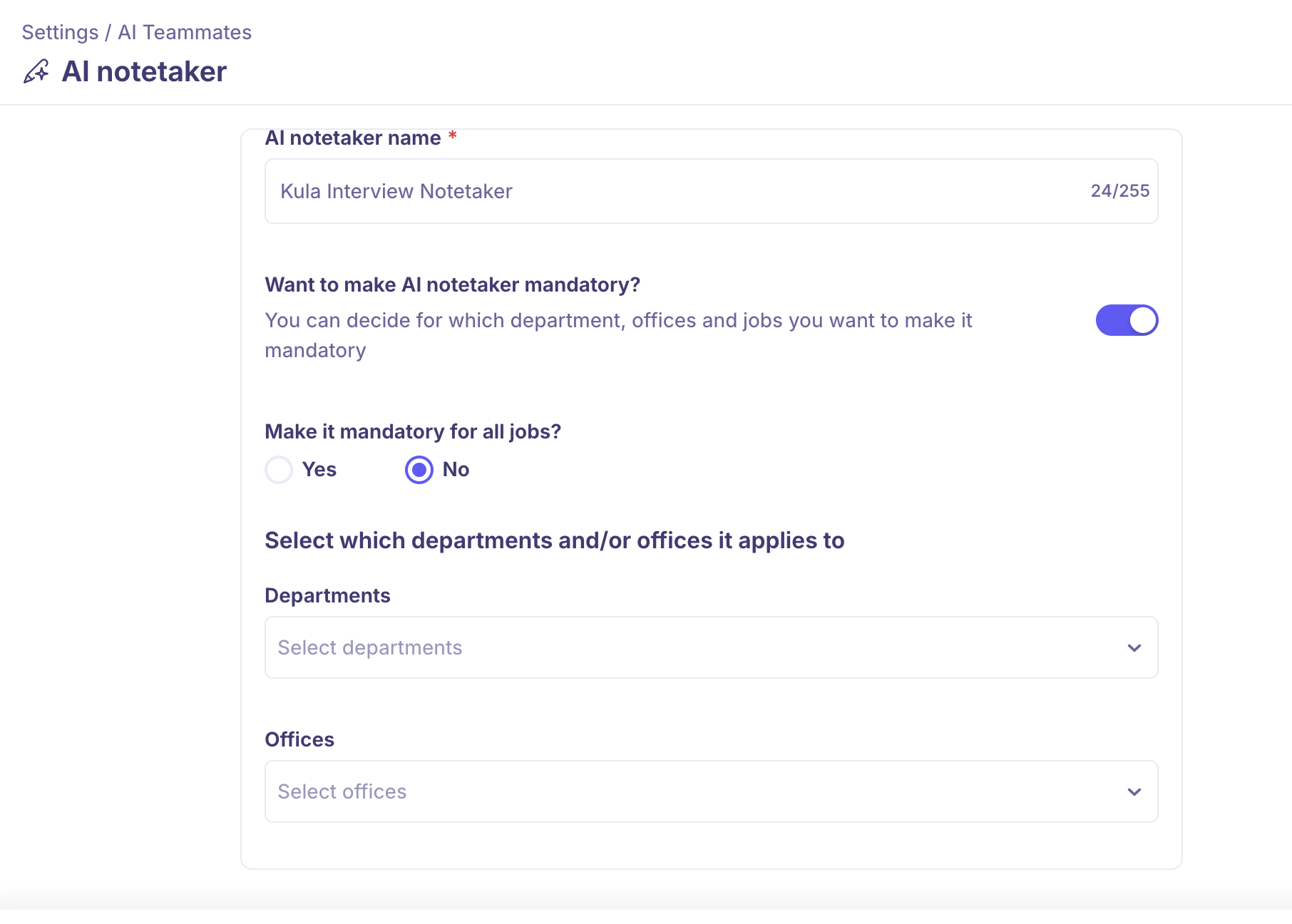
Go to Settings → AI Teammates → AI notetaker.
Under Want to make AI notetaker mandatory?, choose Yes or No.
If you chose Yes, answer Make it mandatory for all jobs?: Yes for every job, or No to choose the Departments and Offices it's mandatory for.
Optionally, change the AI notetaker name: the name it uses when it joins a meeting.
Save.

Mandatory: it joins every interview on a supported platform, and the switch on each interview is locked on.
Not mandatory: whoever schedules an interview can turn it on or off for that interview, when scheduling or by editing the interview later.
Changes apply only to interviews scheduled afterwards. An interview already on the calendar keeps the setting it was scheduled with.
How the settings work together
"Not mandatory" doesn't mean off. For an interview scheduled from the interview plan, the switch starts from that activity's Notetaker setting, which is on unless someone turned it off in the plan. For an ad-hoc interview, it starts off. Check the switch when you schedule.
There's no switch that turns it off for everyone. When it isn't mandatory, anyone scheduling an interview can still turn it on.
To stop it joining an interview that's already scheduled, turn it off on that interview, or remove it from the call when it joins.
Use it for part of your organization
Mandatory for some teams: make it mandatory only for selected departments or offices. Everyone else can still add it per interview.
Opt-in only: leave it not mandatory and turn it off in your interview plans, so people add it to interviews when they want it. This suits a pilot, or waiting for privacy or legal sign-off.

There's no setting per person or per role. If some interviewers don't want to be recorded, turn the Notetaker off for their interviews.
AI-filled scorecards
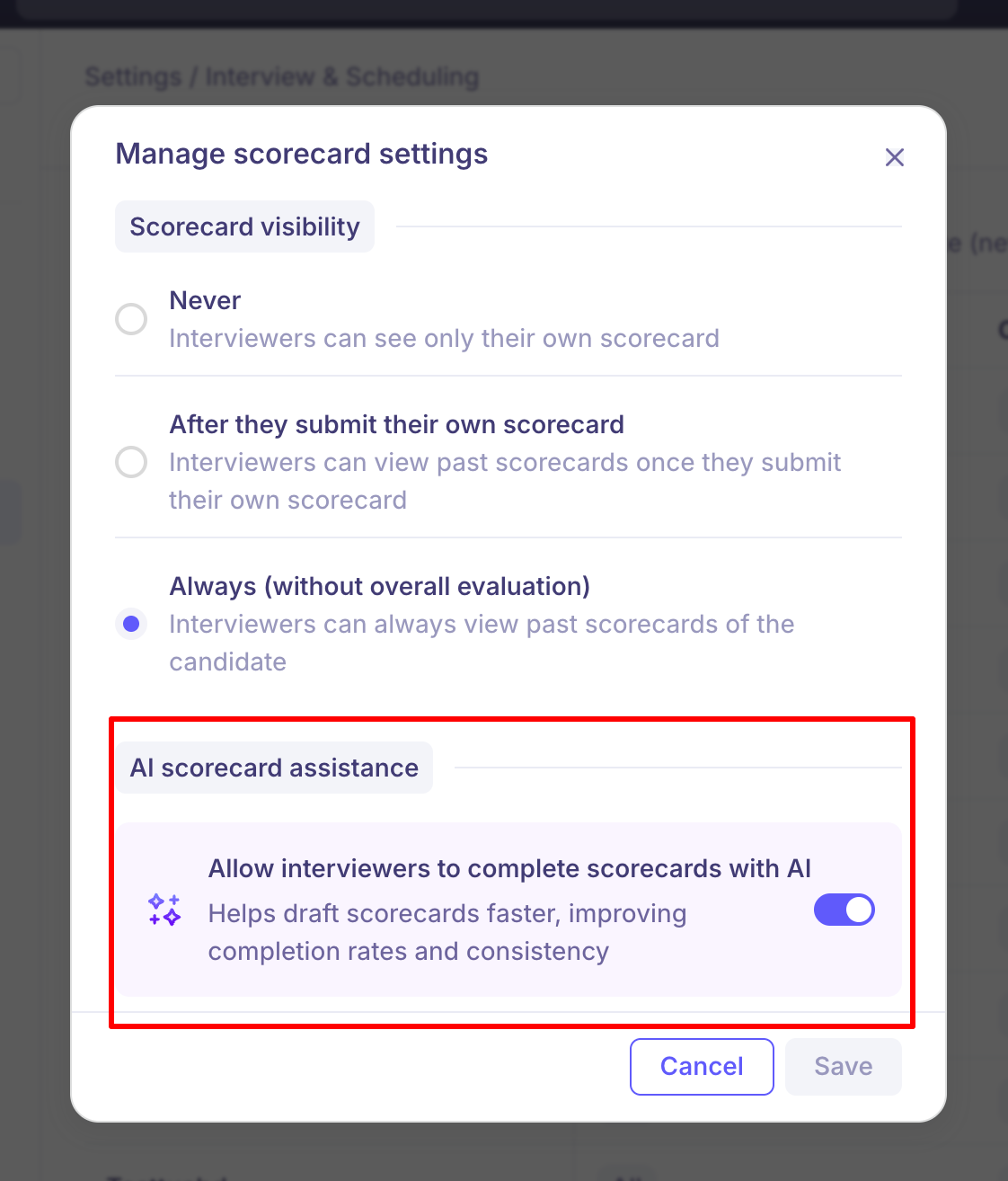
Filling in scorecards with AI is controlled separately from recording. An admin can turn it on or off for the whole organization, and the person scheduling can turn it on or off for each interview (Allow interviewers to complete scorecards with AI?). So you can keep the recording and transcript but have interviewers write their own feedback.
AI fills the whole scorecard or none of it. You can't pick questions.
Structured, competency-based scorecards get better AI-filled feedback than one general feedback field.
What it can't do
Phone interviews aren't supported.
In-person interviews aren't reliable. If a meeting link is left running in the room, it can record, but can't reliably tell speakers apart.
Late starts may be missed. It joins at the scheduled time and can leave if the call stays silent.
Custom vocabulary isn't supported. Company, product and technical names are transcribed as heard.
Good to know
Google Meet needs someone to admit the Notetaker. Google doesn't let bots join on their own. Tell your panel to admit it, or it will time out.
Microsoft Teams policies can block recording. Some organizations' Teams settings stop outside bots from capturing audio, so the Notetaker joins but records nothing.
Zoom "recording permission denied" usually means Local Recording is off in Zoom, not that the candidate refused. See Before you start.
Anyone can connect their own calendar under My Settings → Integrations and create Meet links, whatever their role.
Check summaries against the transcript. Summaries can read more positively than the interview was, and can occasionally get a detail wrong. Check the transcript for anything that affects your decision.
Candidates are told. When the Notetaker is on, the calendar invite says: "This organization uses a notetaker to record and transcribe interviews. By attending this interview, you consent to be recorded." Add your own wording if your location needs it. See Telling candidates the interview is being recorded.
FAQ
Can the Notetaker join every interview automatically?
Yes. Make it mandatory in Settings → AI Teammates → AI notetaker.
If it isn't mandatory, is it off by default?
Not always. Interviews from the interview plan start with the plan's setting, which is on unless someone turned it off. Ad-hoc interviews start off.
How do we turn it on only for the people who want it?
There's no per-person setting. Leave it not mandatory and turn it on or off for each interview.
Can I stop it joining an interview that's already scheduled?
Changing the organization setting won't affect it. Turn it off on that interview, or remove it from the call.
It joined the Zoom call but isn't recording.
Check Zoom's Local Recording setting. See Before you start.
Can I turn off AI-filled scorecards but keep the recording?
Yes. They're controlled separately.
Does every interviewer need to connect their calendar?
Only those who create Google Meet links themselves.
Need help?
If you have questions or need assistance, reach out to us at support@kula.ai or use the in-app chat.