Running a background check and reading the report
Last updated: September 25, 2026
Kula works with four background check providers: Checkr, Certn, Zinc and SpringVerify. Once one is connected, you send a check from the candidate's application, follow its progress on a card on their job stage, and open the finished report from there. This article covers all four.
Who can do this: Recruiters and Hiring Managers send checks and view reports. Super Admins and Admins connect providers.
Where to find it: send: the candidate's application → actions menu → Send Checkr assessment / Send Certn assessment / Send Zinc assessment / Send SpringVerify assessment. Only connected providers appear. Results: the candidate's current job stage → the background check card. Connect: Settings → Organization → Organization integrations → Background checks.
Before you start: connect a provider
An admin connects each provider once. Each one needs different details:
Provider | What you need | Setup guide |
|---|---|---|
Checkr | Click Connect and follow Checkr's sign-up to authorize Kula. The connection stays pending until Checkr confirms your account | |
Certn | An API key, your region (North America, Europe/Middle East/Africa or Asia Pacific) and a webhook secret, all from your Certn account settings. Click Verify API Key | |
Zinc | An API key from your Zinc account settings | |
SpringVerify | An API Token from your SpringVerify account settings. SpringVerify has to be turned on for your account first; ask Kula support if you don't see it |
Send a check with Certn, Zinc or SpringVerify
These three share the same screen in Kula.
Open the candidate's application and, from the actions menu, choose Send Certn assessment, Send Zinc assessment or Send SpringVerify assessment.
Select a package from the dropdown. The checks it includes, such as criminal, employment or education checks, are listed underneath.
Click Submit.
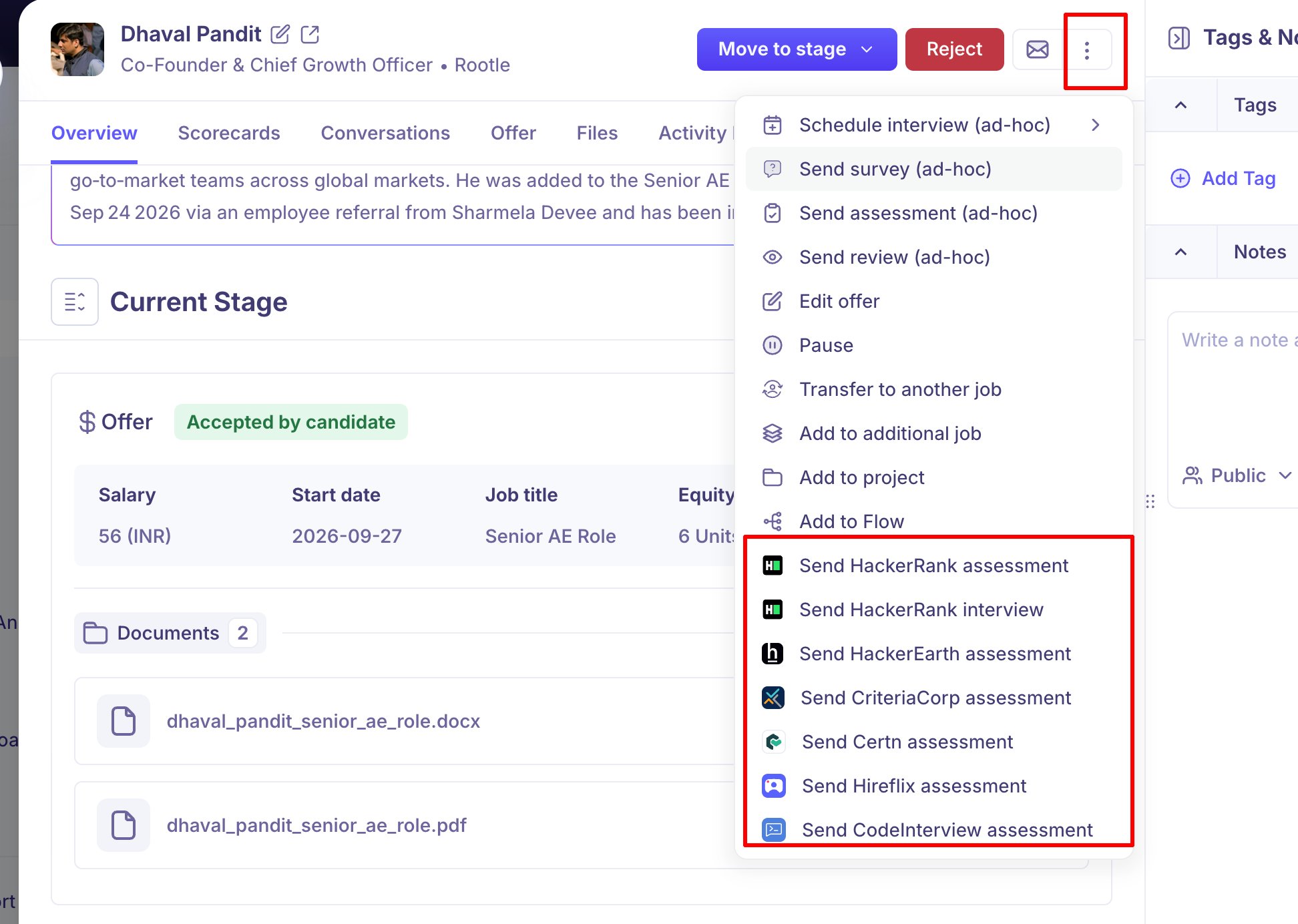
The provider emails the candidate to collect their details and consent. The option is greyed out if the candidate has no email address.
Send a check with Checkr
Open the candidate's application and, from the actions menu, choose Send Checkr assessment.
Checkr's own screen opens inside Kula. Choose the package there.
Submit.
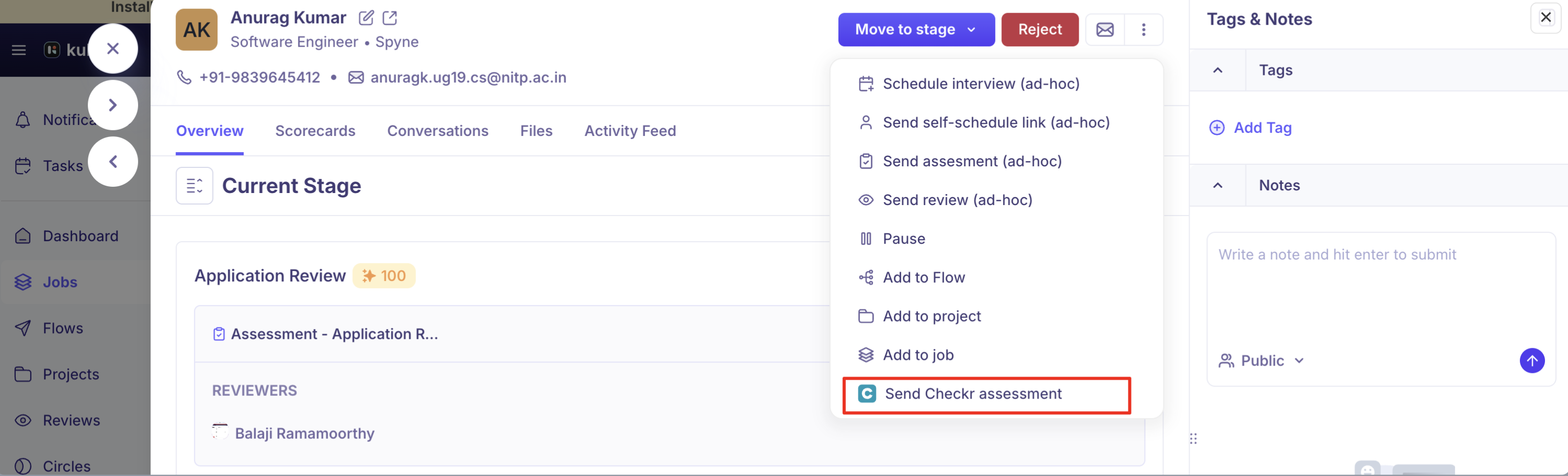
Checkr emails the candidate a consent request directly.
Follow the check
Open the candidate's profile and go to their current job stage. Each background check appears as a card showing the provider, the package and its status.
Status | What it means |
|---|---|
Invitation pending | The candidate has been invited but hasn't started |
Invitation completed | The candidate has completed the invitation |
Candidate started | The candidate has started filling in their details |
Candidate completed | The candidate has finished their part |
Invitation expired | The candidate didn't finish in time |
Invitation deleted | The invitation was cancelled |
Report pending | The check is running |
Eligible | The report came back clear |
Review | The report needs a closer look |
Escalated | The report has been flagged for extra review |
Report suspended | The check is paused |
Report disputed | The candidate has disputed something in the report |
Report pre adverse action / Report post adverse action | The report is going through an adverse action process, before or after the decision is shared with the candidate |
Report cancelled | The check was cancelled |
Checkr uses the same statuses, except Candidate started and Candidate completed. How quickly statuses update: Checkr, Certn and Zinc update Kula as things change. For SpringVerify, Kula checks about once an hour, so a change can take up to an hour to show.
Read the report
Click View report on the background check card.
Certn, Zinc and SpringVerify: the report opens as a PDF inside Kula.
Checkr: the report opens in Checkr's own screen inside Kula.
Kula doesn't notify you when a report is ready. Check the card on the candidate's job stage, or their activity feed.
Good to know
The candidate needs an email address. Without one, the send option is greyed out.
Reports are for your team only. Candidates don't see the background check card in Kula.
Disconnecting a provider affects checks in progress. Kula warns you before you disconnect.
Changing Checkr accounts: if your organization reconnects Checkr with a different account, checks made under the old account can't be opened from Kula. If Checkr is disconnected, the card says so until someone reconnects it.
Billing is with the provider. For example, Checkr bills you directly.
Who to contact: Kula support for setup or connection problems; the provider's support for questions about results or billing.
FAQ
How do I run a background check?
Open the candidate's application → actions menu → Send (provider) assessment, choose a package and submit. Why is the send option greyed out?
The candidate has no email address. Add one to their profile first.
How do I know which checks are in a package?
They're listed under the package dropdown before you submit (Certn, Zinc and SpringVerify), or in Checkr's screen.
How is the candidate notified?
The provider emails them to collect their details and consent.
How do I know when the report is ready?
Kula doesn't send a notification. Check the card on the candidate's job stage or their activity feed.
Why does Checkr look different from the others?
Checkr's package selection and report open in Checkr's own screen inside Kula.
Certn is asking for a region and a webhook secret. Where do I find them?
In your Certn account settings, with the API key. If you can't find them, contact Certn support.
I don't see SpringVerify under integrations.
It has to be turned on for your account first. Contact Kula support.
SpringVerify's site shows a new status but Kula doesn't.
Kula checks SpringVerify about once an hour, so wait a little.
Need help?
If you have questions or need assistance, reach out to us at support@kula.ai or use the in-app chat.