The job dashboard and activity feed
Last updated: September 24, 2026
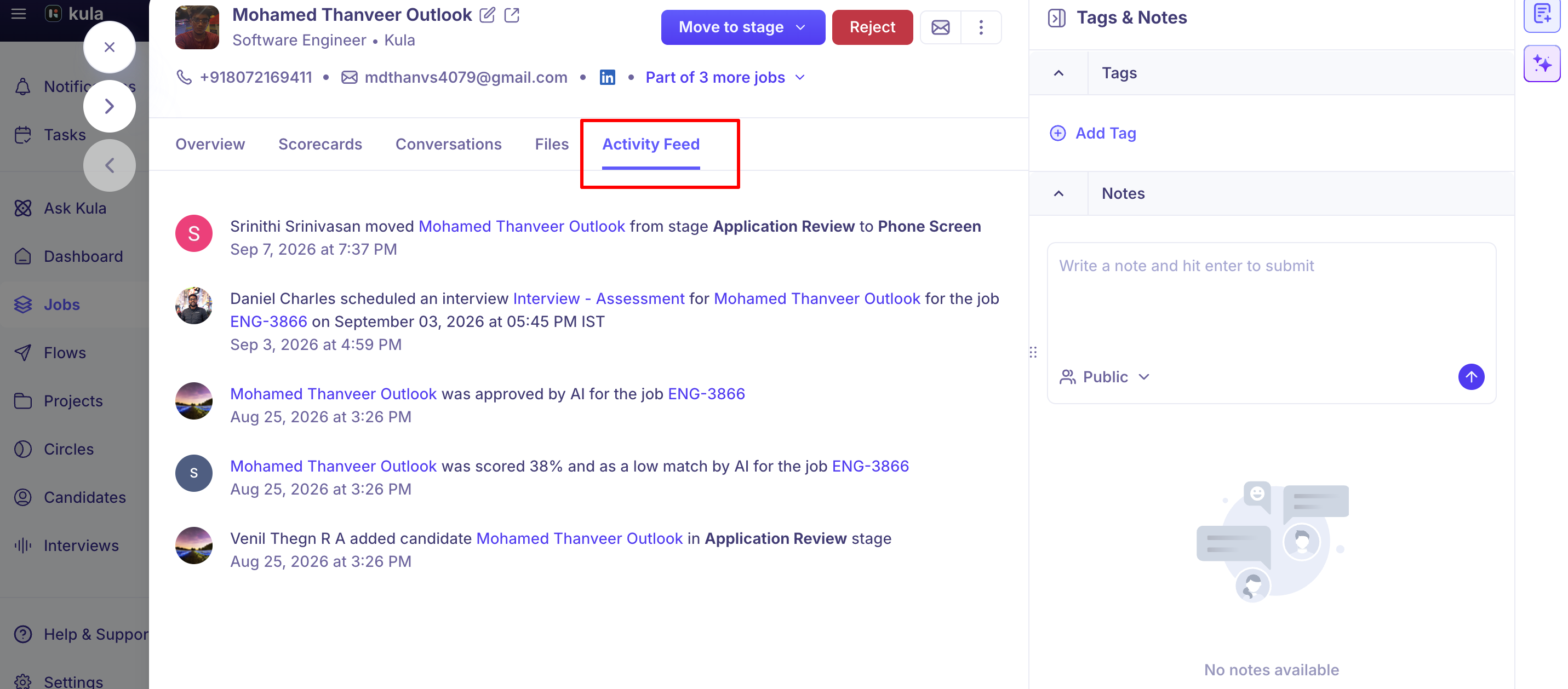
Every job has a Dashboard tab, an at-a-glance view of how the job is doing, and an Activity feed tab, a complete log of every change made to the job.
Who can do this: anyone who can see the job, usually its hiring team. See Job-level permissions and visibility.
Where to find it: open a job from Jobs. Dashboard is the first tab, and Activity feed sits alongside Pipeline, Candidates and Job boards..
What the dashboard shows
Panel | What it shows |
|---|---|
Applications | The job's candidates split into Active, Hired and Rejected. |
Pipeline | How many candidates are in each stage. |
Pending Activities | Interview and offer tasks waiting on someone: Overdue, Needs scheduling, Needs action, Needs decision and Needs offer. |
Source Split-up | Where applicants are coming from. |
Application Trend | Applications over time. Switch between 7D, 12D and 30D. |
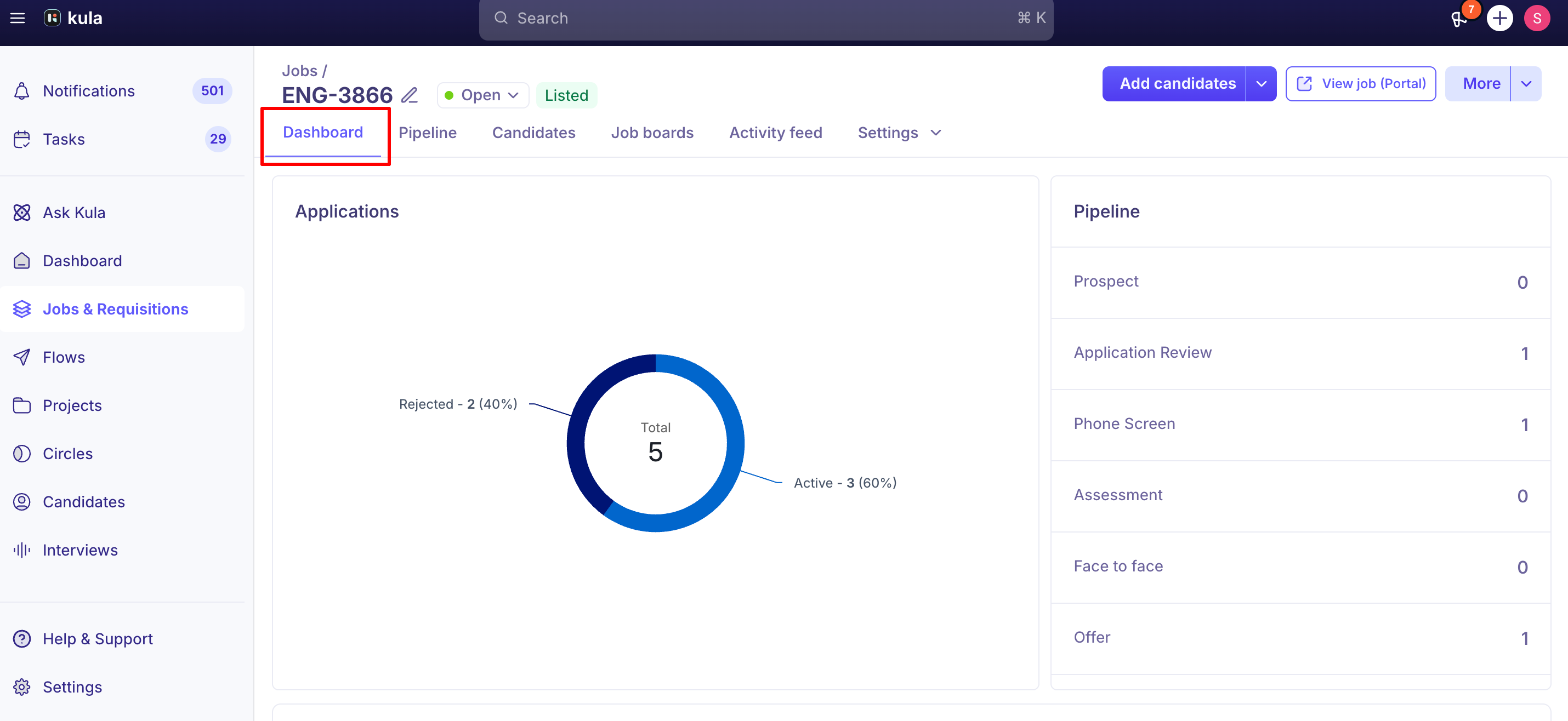
Click a stage in Pipeline, or a part of the Applications chart, to open the Candidates tab filtered to those candidates. Source Split-up and Application Trend are view-only.
See every change in the activity feed
The Activity feed records changes to the job automatically as they're saved:
Area | What's logged |
|---|---|
Job details | Job description, department (after it's first set), work type, experience level, education, open/close/start dates, confidentiality, skills, offices, salary (type, value, currency), custom fields and job attributes |
Setup | Hiring team, interview plan, stages and activities, job post, job boards, AI scoring settings, automations, requisition links |
Status and approvals | Job status changes and job approvals |
Candidates and offers | Hires; offers created, cancelled, accepted and declined; auto-rejections; the stage a candidate was added to |
Good to know
No custom date range on Application Trend. For another time window, ask Conversational Analytics in plain language.
No interview-round funnel on the dashboard. Counts such as first round, second round and offers by period need a report, which needs report access.
Job-level custom fields don't appear on the dashboard. They're on the job's setup screens. See Job-level custom fields.
The activity feed isn't your notifications. Notifications alert you personally. The account-wide Recent activities log covers bulk actions across all jobs. See Notifications & activity feed.
Transferred candidates keep separate trails. Each job keeps its own activity, and a transferred candidate's activity is grouped under the transfer.
FAQ
Where do I find a job's rejected candidates? Click the Rejected part of the Applications chart, or use the Candidates tab.
Is a change to salary or the close date tracked? Yes, in the job's Activity feed, with no extra step.
A job was renamed and now looks like a different role. What happened? Nothing was duplicated. The rename is in the Activity feed, so you can confirm it's the same job.
A colleague can't see a job that I can. Why? Access follows the job's own visibility rules. See Job-level permissions and visibility.
Need help?
If you have questions or need assistance, reach out to us at support@kula.ai or use the in-app chat.