Get started as an External Collaborator
Last updated: September 24, 2026
Welcome to Kula! You've been given access by a company you're working with — usually as a recruitment agency submitting and managing candidates, or as a contractor helping run part of their hiring.
Who this is for: anyone with the External Collaborator role. On a job's hiring team you may see this labelled External recruiters (agency) — same role, two names.
Where to find it: sign in at your client's Kula address, for example theircompany.kula.ai
Sign in
Your client has their own Kula address — theircompany.kula.ai — and your invitation points at it. Bookmark that exact address; if you work with more than one client on Kula, each has its own login.
You'll sign in with a password, or with Google or Microsoft.
What you can and can't do
This is the part worth reading twice, because almost every question in this role comes from here.
You can, on the jobs you're added to:
Add candidates and manage the ones you added.
Schedule interviews and move your candidates through stages — the same day-to-day actions the client's own recruiters take, but for your candidates.
Be shared a project or added to a Flow, so you can source into a shortlist or run outreach where the client sets it up.
You can't:
Create or view offers — offers stay with the client's own team.
See candidates other people added to the same job. You see the candidates you brought in, not the full pipeline.
See the client's wider candidate database, their reports and analytics, private notes on candidates, or any organisation settings.
Set up your calendar
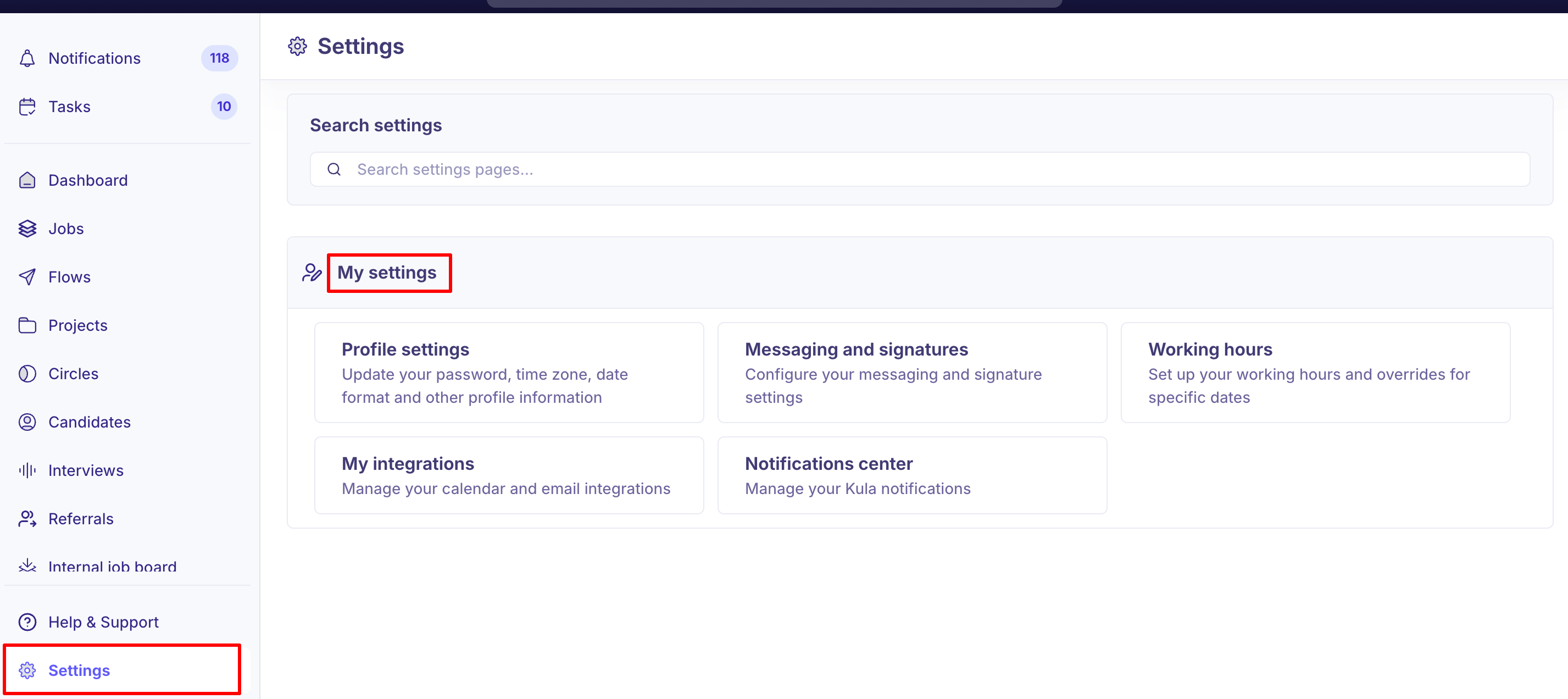
If you'll be scheduling interviews for your candidates, connect your calendar and set your timezone before anything else.
To schedule, your own calendar must be connected — Kula creates the interview on your calendar, as you, so no connection means no scheduling.
Set your timezone so your working hours are read correctly. Both live in your profile.
Set your notification preferences so updates on your candidates reach you where you'll see them — Slack, email or in-app.
Whether you can see the client's interviewers' calendars when scheduling depends on their workspace sharing setting. If you can't and you need to, ask them.
Submit and manage your candidates
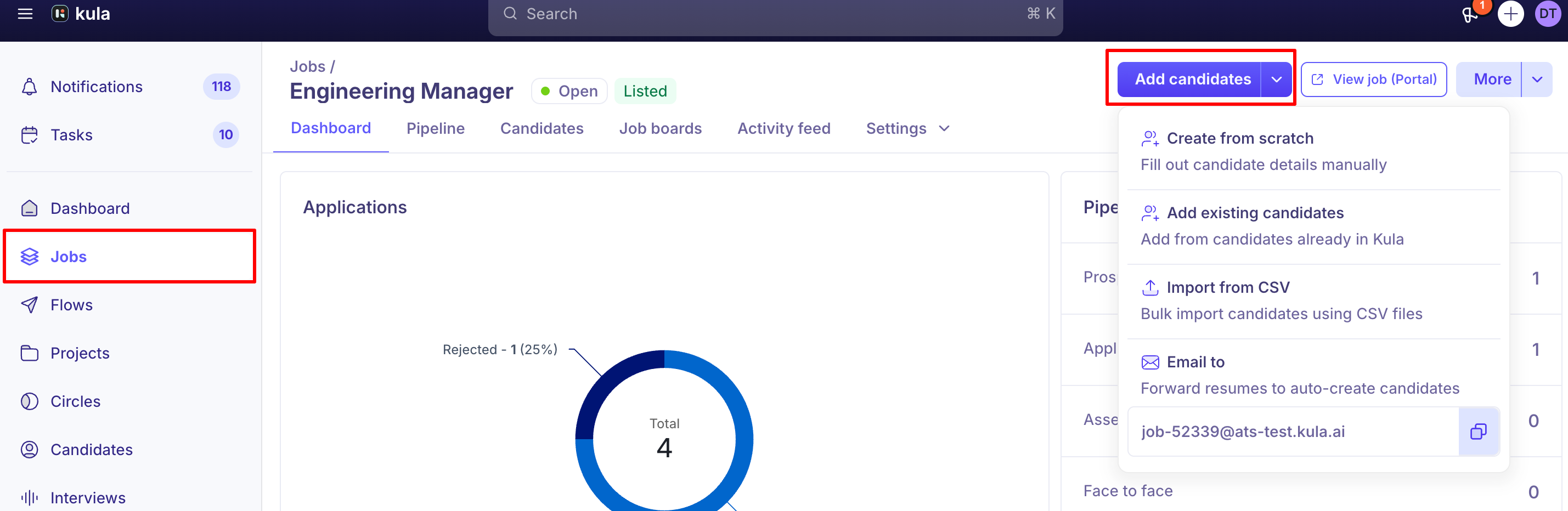
On a job you've been added to, you own your candidates end to end within your permissions.
Add them from the job's candidate page, attaching the resume and filling in what you know.
Set the source and who gets credit as you add — this is how your submissions are attributed, so accuracy matters more than speed.
Move them through stages and schedule their interviews as the process goes, just as the client's recruiters do for theirs. See Schedule interviews.
A candidate already in the client's system may not be yours to claim — most agreements treat prior contact as prior ownership, so check your terms if someone looks familiar.
See How to add candidates to a job.
Track where your candidates stand
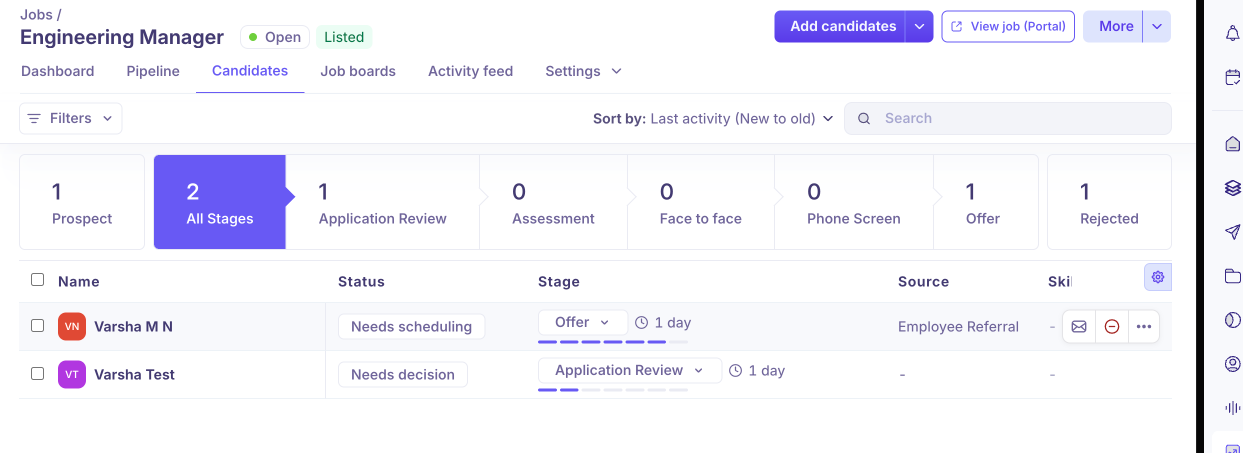
Open the job and look at your submissions — you'll see the stage each person has reached, so you can chase your own candidates rather than emailing the client for updates.
If someone has gone quiet in one stage for a while, that's the conversation to have with your client contact — usually a decision waiting rather than a rejection nobody mentioned.
Check here for Full Walkthrough of Candidate Management
If you're interviewing
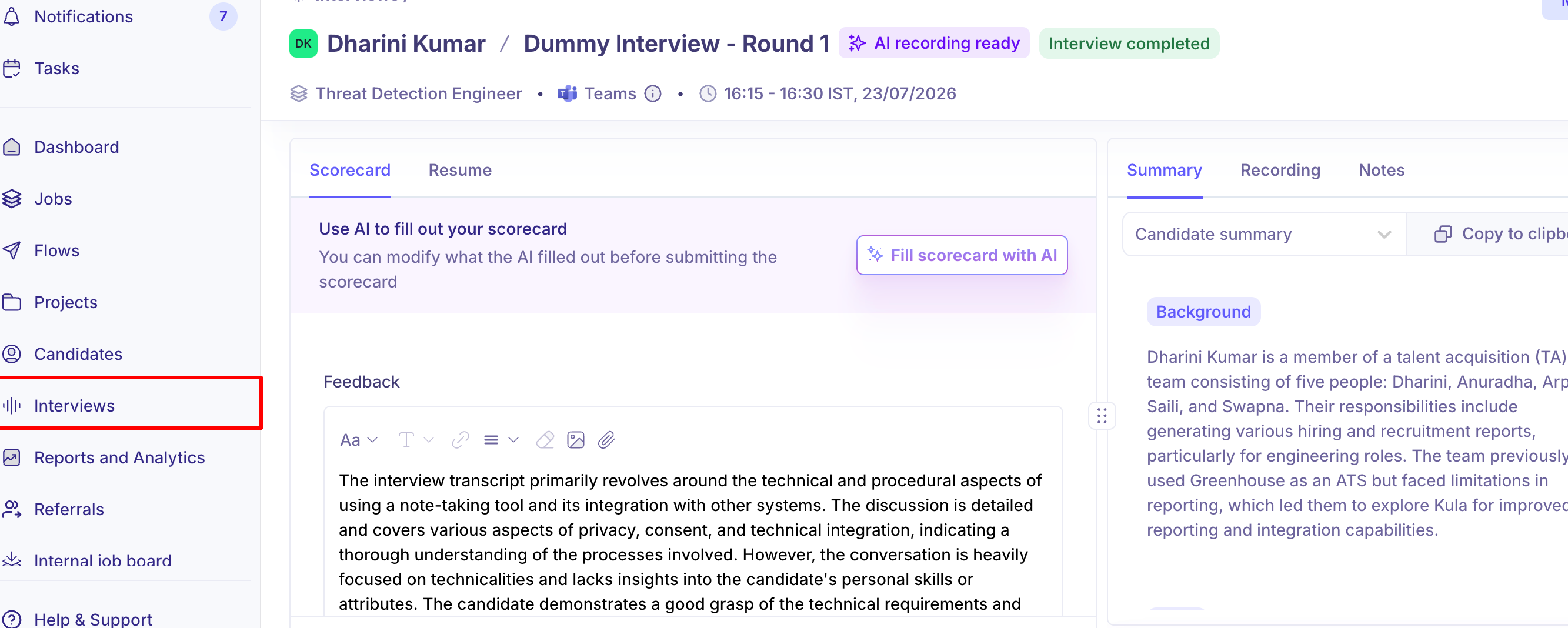
Open the briefing attached to the calendar invite before you join — resume, previous feedback, and what you're being asked to assess.
Fill your scorecard afterwards, the same day where you can. It's in Open tasks on your dashboard — see Submitting a scorecard as an interviewer.
Remember the Overall Evaluation at the bottom — leave it blank and the scorecard stays in Draft and never reaches the client.
Your first week, in short
Signed in at your client's Kula address and bookmarked it
Calendar connected and timezone set (if you'll schedule)
Notifications pointed at a channel you read
One candidate added, with source and credit set correctly
Good to know
Each client has its own Kula address. If you work with more than one client on Kula, you sign in separately to each.
You only see the candidates you added. Other agencies' and the client's own candidates on the same job aren't visible to you.
Offers stay with the client. You can't create or view offers.
You need your own calendar connected to schedule. Kula creates the interview on your calendar, as you.
Whether you can see the client's interviewers' availability depends on their calendar sharing. If you can't see it, ask your client contact.
A scorecard without an Overall Evaluation stays in Draft. It never reaches the client until you fill that in.
Most access questions are for your client contact. They decide which jobs you're on and what you can see.
FAQ
I can't see a job I've been told to work on. What do I do? Ask your client contact to add you to that job's hiring team. You only see jobs you've been added to.
Why can't I see all the candidates on the job? You see the candidates you added, not the full pipeline. That's how the External Collaborator role works.
Can I send the offer to my candidate? No. Offers are created and sent by the client's own team.
Why can't I schedule an interview? Your calendar isn't connected. Connect it under Settings → My settings → My integrations, then try again.
I submitted my scorecard but the client says they can't see it. Check you filled in the Overall Evaluation at the bottom. Without it, the scorecard stays in Draft.
I work with two clients on Kula. Can I use one login? No. Each client has its own Kula address and login — bookmark each one.
Need help? If you have questions, start with your client contact — most access is theirs to resolve. For anything else, reach us at support@kula.ai.