Get started as an Interviewer
Last updated: September 26, 2026
Welcome to Kula! Most people at your company sit here — you're not running hiring, but you interview, you refer people you rate, and you might apply for an internal role. All three take a few minutes a week.
Where to find it: Sign in at yourcompany.kula.ai
Who this is for: interviewers. In Kula your access sits under the Organization Member role
Sign in
Your organization has its own Kula address — yourcompany.kula.ai. You'll sign in with a password, with Google or Microsoft, or through your company's single sign-on.
You'll see a focused slice of Kula in the left navigation: Dashboard, Interviews, Referrals, and the Internal job board, plus your own Settings.
First, set yourself up
Two minutes in Settings → My settings, and it's the difference between being booked well and being booked over:
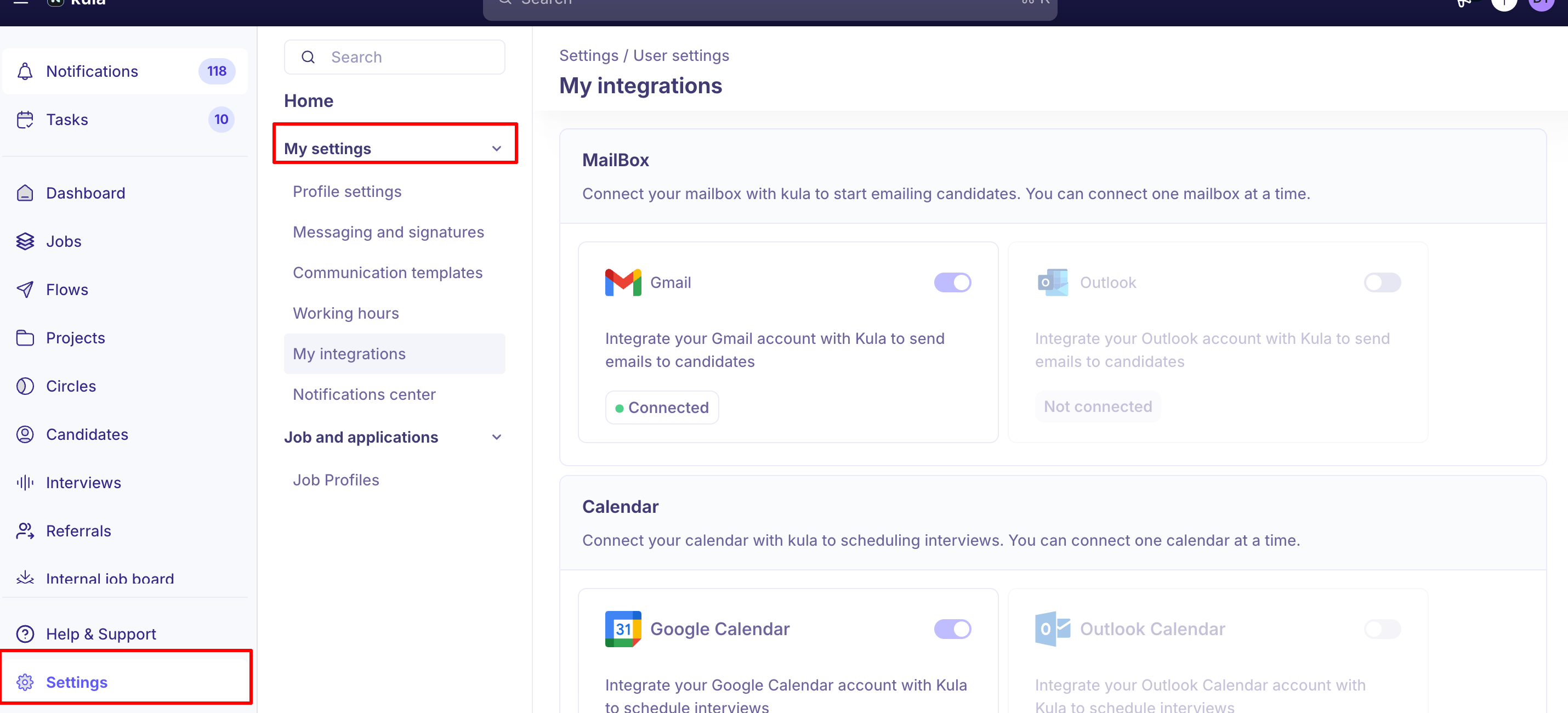
Set your working hours — your availability for interviews specifically, so you can keep lunch or a focus day free even when your calendar looks empty
Add an out-of-office for whole days you're tied up with other work
Set your time zone — every interview time you see displays in it
Choose your notification channels
Check your Dashboard
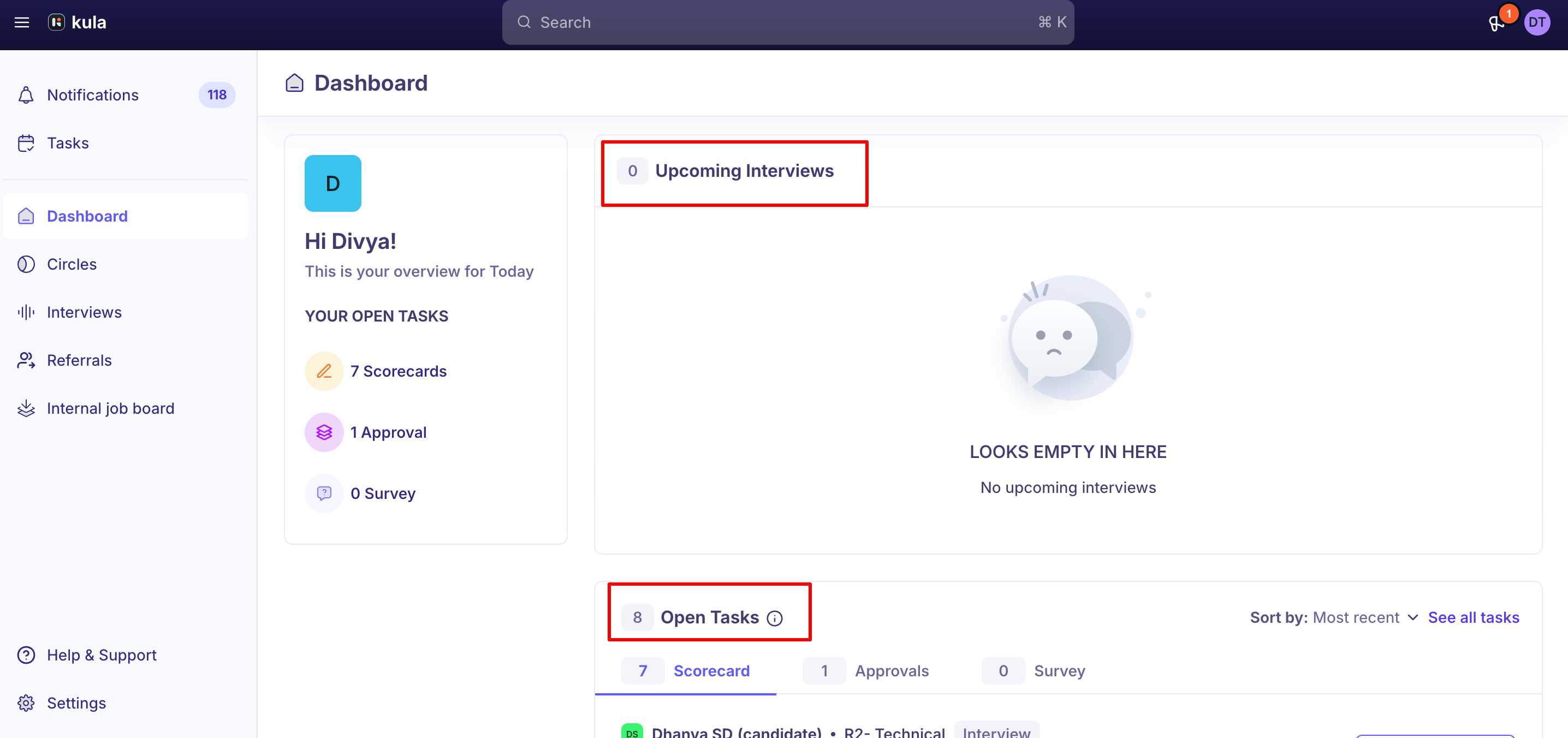
Your Dashboard answers one question: what's waiting on me? Upcoming interviews shows what's booked and who else is on the panel, and Open tasks lists the scorecards you owe. Both clear as you complete them, so an empty Dashboard means you're done.
Two kinds of task land in that Scorecard list, and it's worth knowing the difference:
Interview — feedback on someone you interviewed.
Review — an application review, where you're asked to weigh in on a candidate before they progress, without a live interview.
Both are filled the same way. There's a fuller tour in Understanding the Kula home screen.
Prepare for an interview
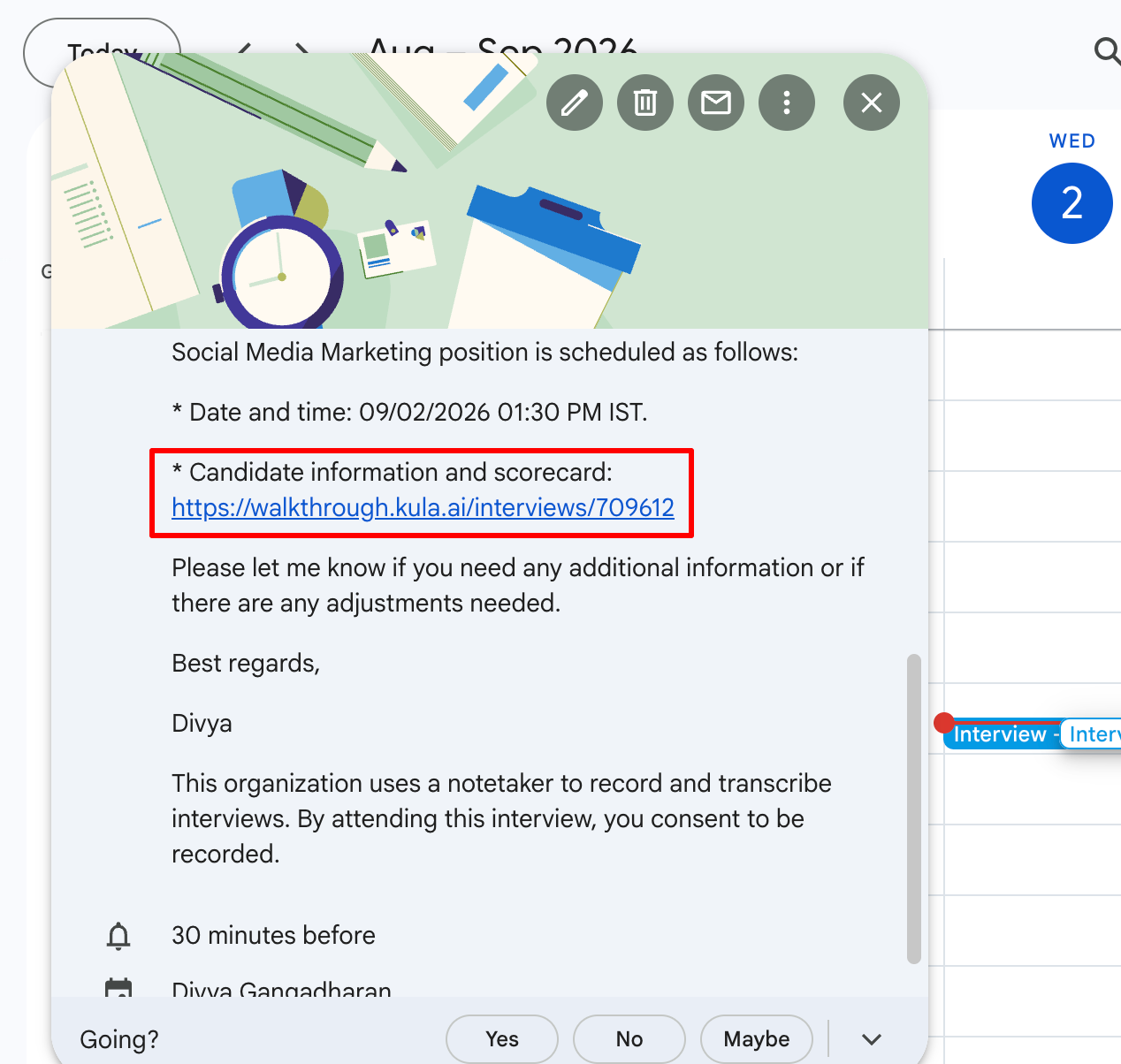
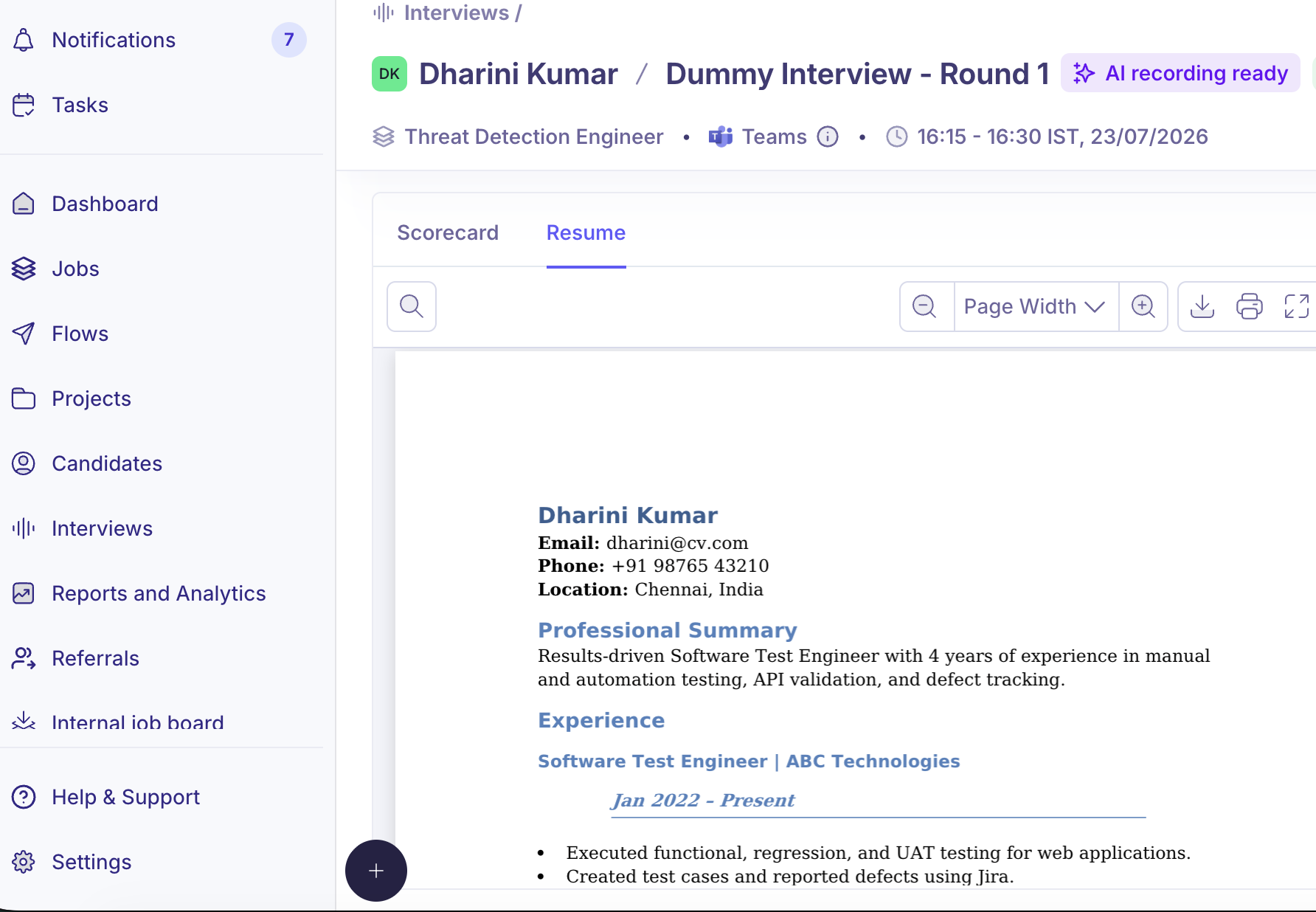
You'll get a calendar invite and reminders to RSVP and prep. Open the interview link from the invite, the reminder or your Dashboard, and give yourself five minutes to:
Read the resume — it sits on the left of the interview page
Skim the scorecard, so you know what you're assessing
Read the interviewer instructions and any notes from earlier rounds
→
Join the Interview
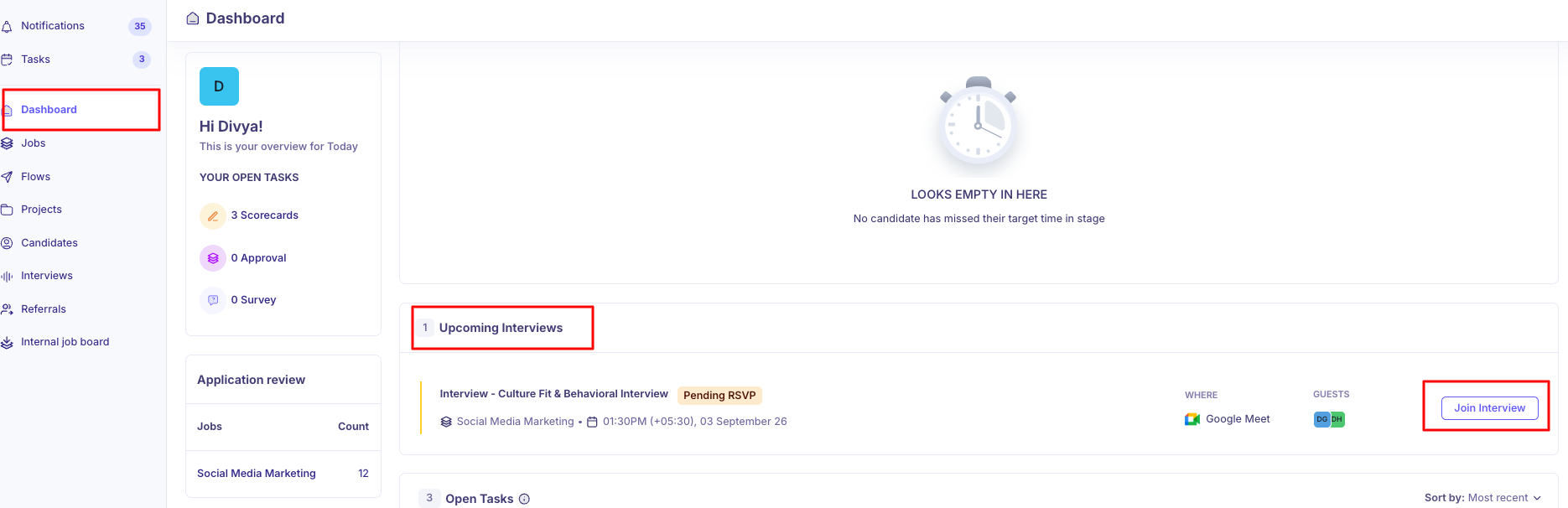
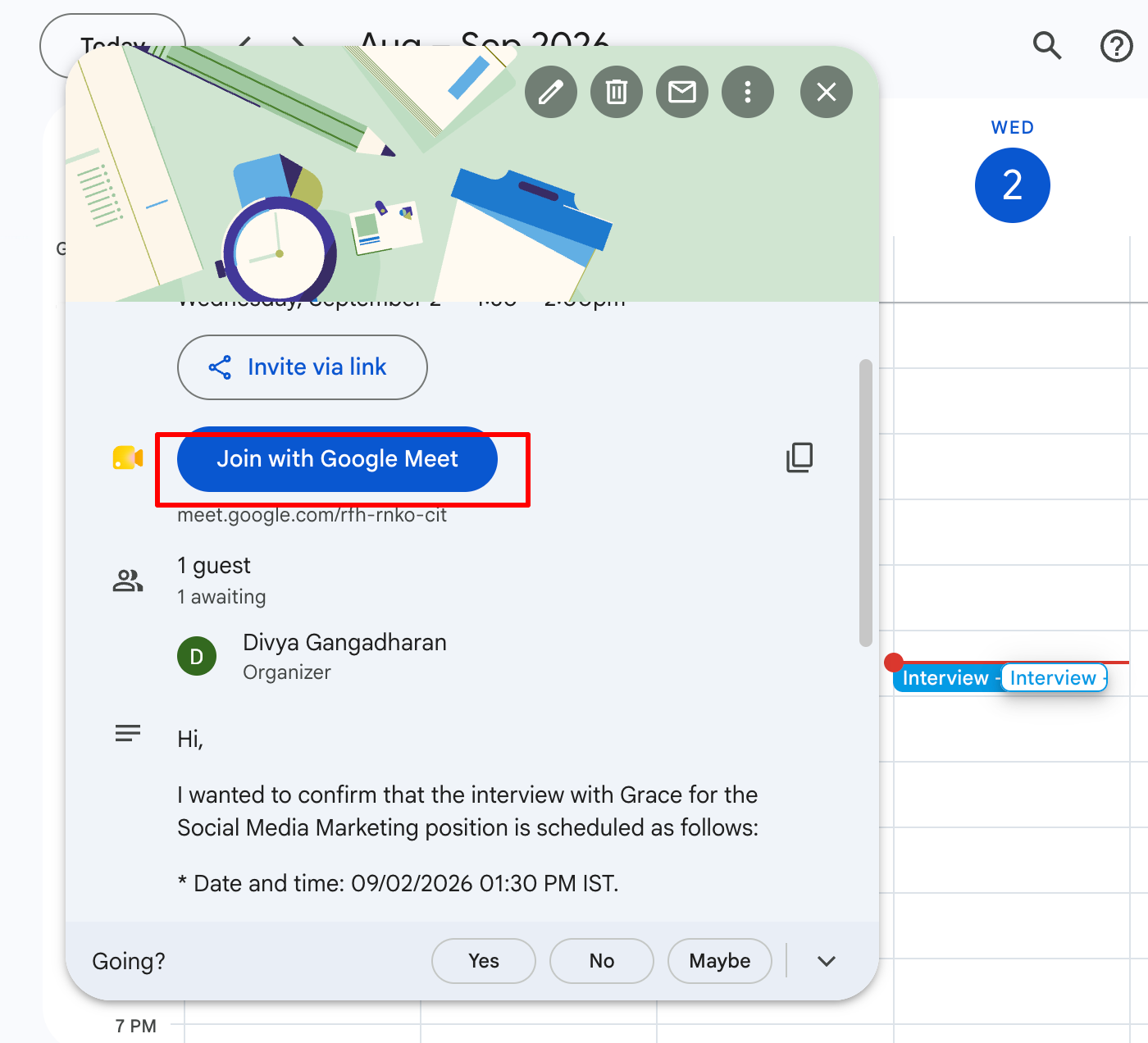
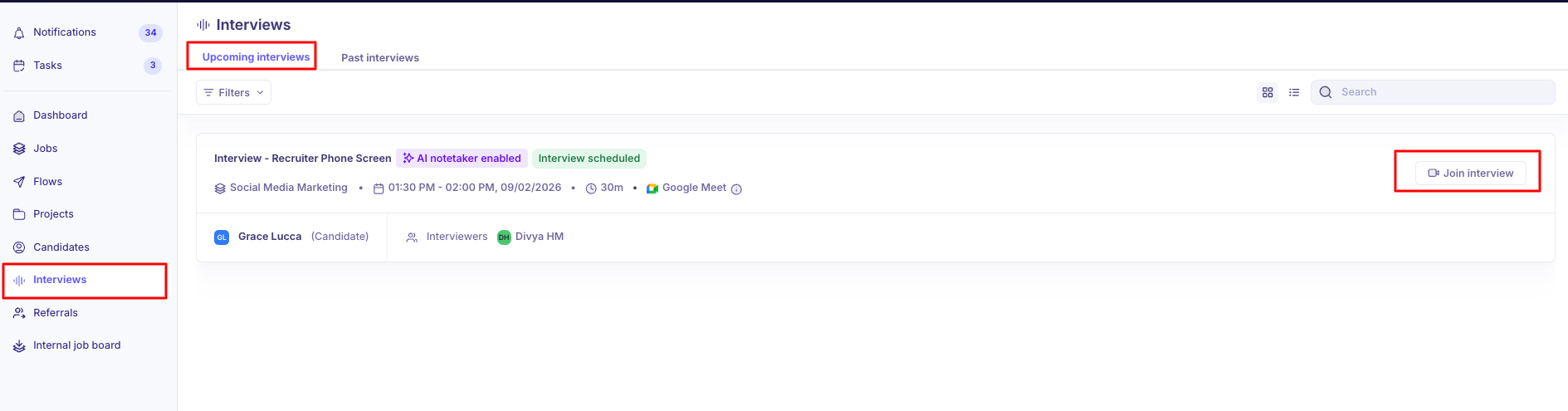
Join with the Join interview button — on the interview page, your Dashboard's upcoming interviews, or the Interviews list. It opens the Google Meet, Teams or Zoom call, and becomes active 10 minutes before the start time, so an early click will show you a tooltip rather than a link. The calendar invite carries the same joining details if you'd rather go from there.
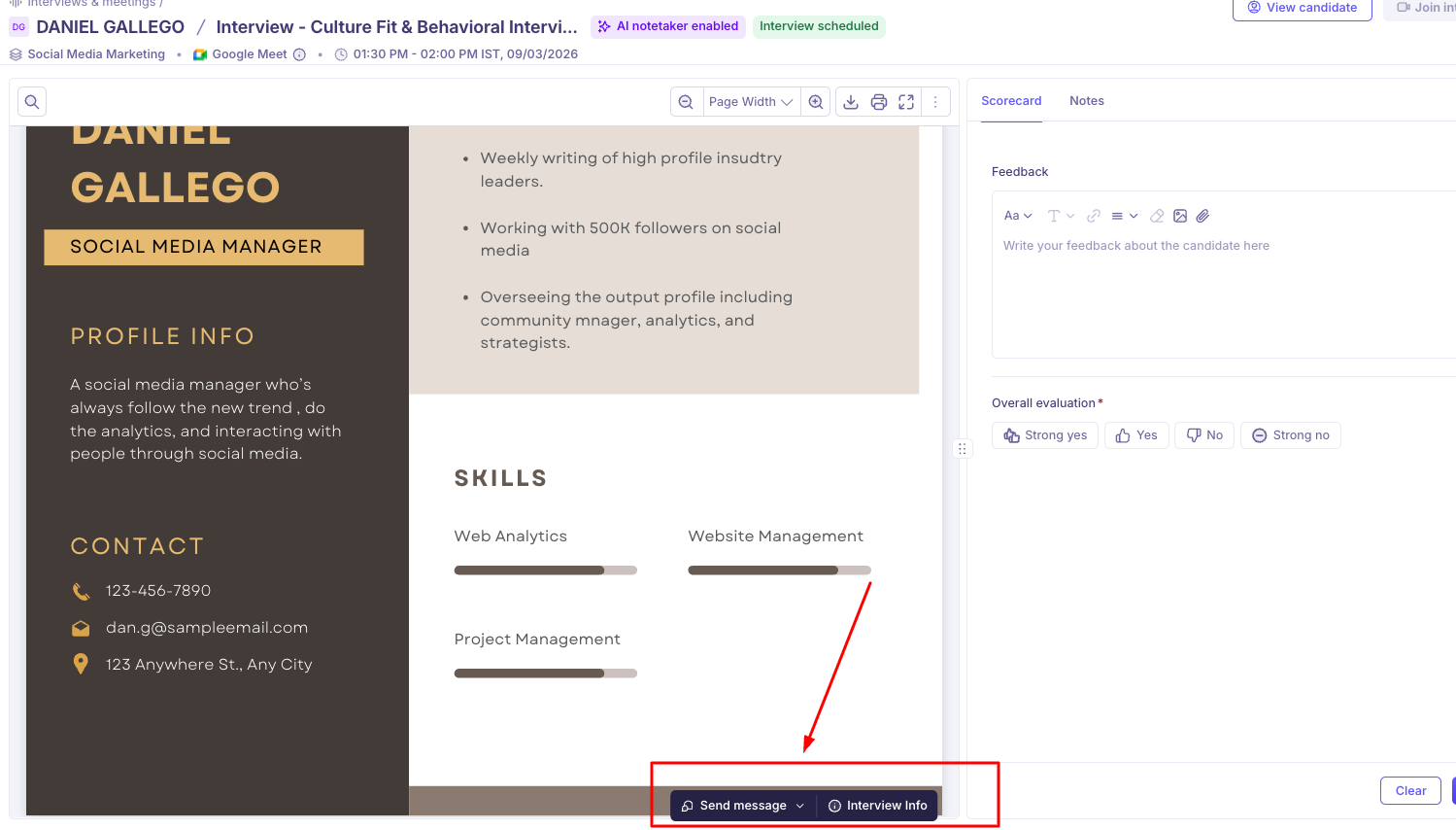
If plans change, you don't have to email around. From the interview, Send message gives you ready-made options — I need this interview rescheduled, I need more information, I will be late to the interview, Change in venue or the meeting link — or a custom message, sent to the right people without drafting anything from scratch.
Let the AI notetaker take the notes
The notetaker joins on Google Meet, Microsoft Teams and Zoom, producing a transcript, recording, summary and highlights. It announces itself in the meeting chat, and speaks a short notice on Meet and Teams, so the candidate always knows.
You may have to admit it. If it's in the lobby, let it in — no notetaker means no transcript and no drafted scorecard.
Submit Scorecard
The AI notetaker captures the transcript and drafts a scorecard from what was actually said; you review, correct and submit. Submit promptly — the process waits on the last scorecard.
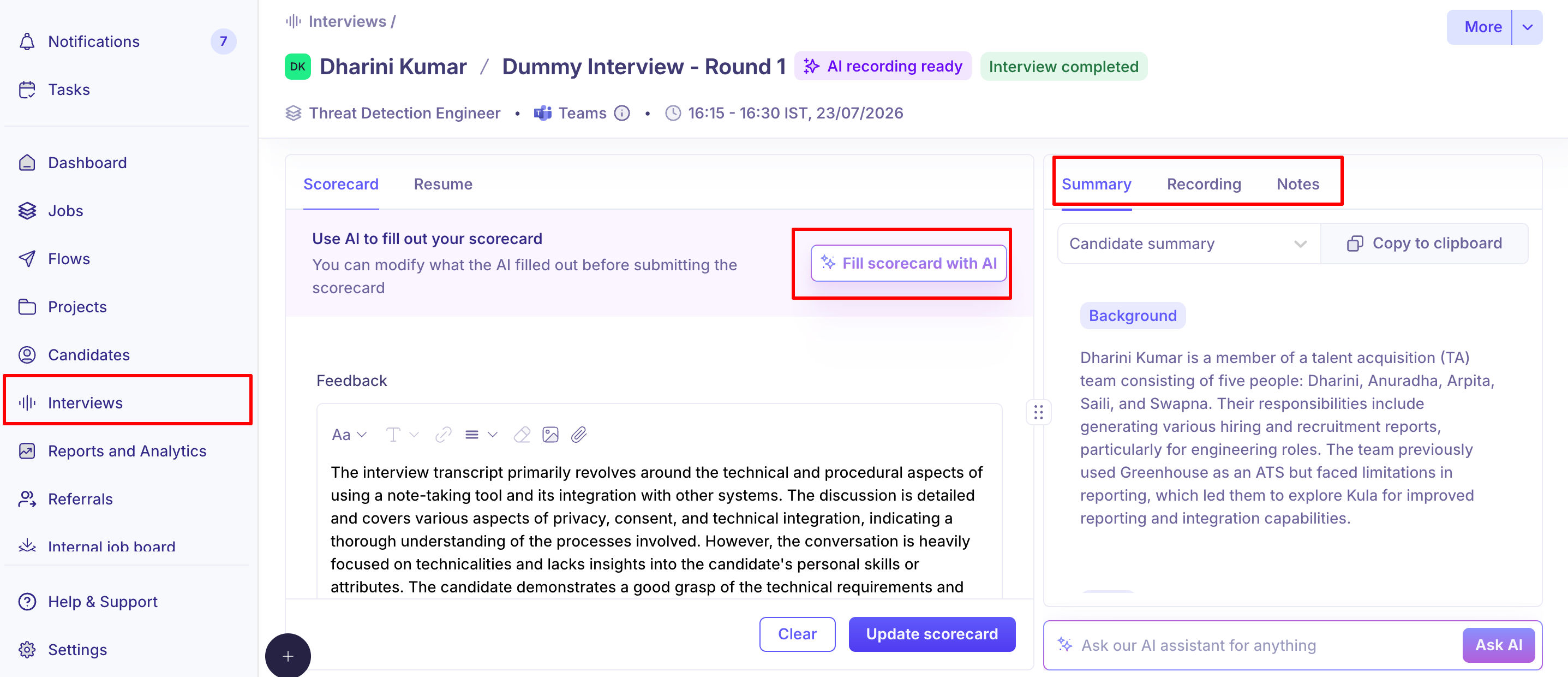
Check here for Leaving interview feedback & scorecards
Whether AI drafts it or you write it from scratch, fill the scorecard the same day. It's the first thing the next interviewer reads, and a stale scorecard is worse than none.
Refer someone you know
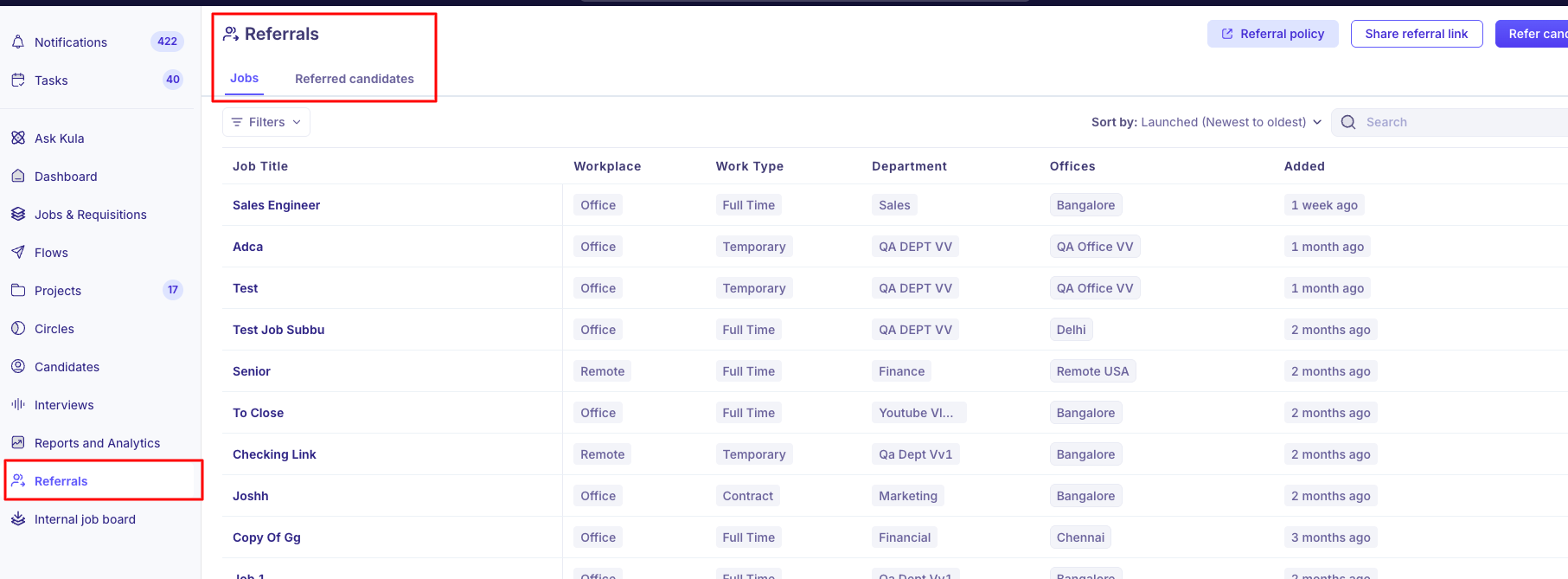
Add the person and the job, share your referral link, and follow their progress from the Referrals page. Your recruiter can also log a referral on your behalf and credit it to you.
→
Apply for an internal role
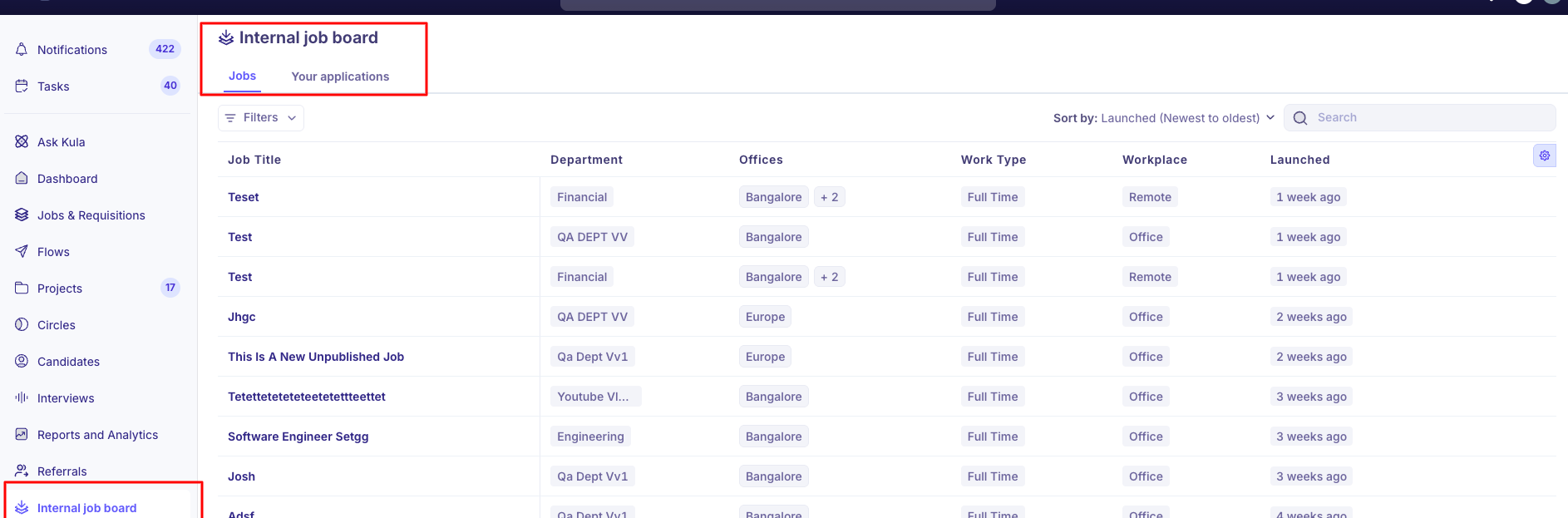
If your organisation runs an internal job board, browse it and apply on the page. Your applications shows where each stands — Under review, Interviewing, Offer, Hired or Not selected. Roles you've applied to stay on the board with an Applied tag.
→
Good to know
Your role in Kula is Organization Member. "Interviewer" describes what you do rather than your permissions — you become one when a recruiter assigns you to an interview, and the job opens up to you then.
You only see the interviews you're on. Search (⌘K / Ctrl+K) is filtered to what you're permitted to see.
You reach candidates through your interviews, rather than through a searchable database.
Recordings are yours to watch in Kula. Downloading is limited to recruiters and admins.
Whether you see others' scorecards is your admin's call — Never, After they submit their own scorecard, or Always (without overall evaluation). Even on the most open setting the overall verdict is withheld.
Reminders follow your working days, so they arrive when you're actually working.
A recruiter can mark a scorecard optional for a given interview.
Some roles are referral-only — you can refer someone for them, and they sit outside the apply board.
Your first week, in short
Timezone set
Notifications pointed at a channel you read
One briefing opened before the interview
One scorecard submitted the same day — Overall Evaluation included
FAQ
A bot called "AI notetaker" joined my interview. Can the candidate see it? Yes — it posts a notice in the meeting chat, and on Meet and Teams plays a spoken announcement when recording begins.
I got booked over something already in my calendar. You don't need to connect a calendar yourself — Kula reads your busy times through the calendar of the person scheduling. If your events aren't showing to them, your organization's calendar sharing in Google Workspace or Microsoft 365 may be set to not share free/busy time. Ask your IT administrator. Also check your working hours under Settings → My settings.
There's no summary after my interview — what happened? The notetaker has to be admitted like any participant. If it stayed in the lobby it captured nothing, so fill the scorecard in manually.
Can I fill in a scorecard from my phone or Slack? Both. Slack reminders let you submit without leaving Slack, and the scorecard page is mobile-responsive.
Where do I find the job I interviewed for? Your access is to the interview itself, so everything you need sits on the interview page and your Dashboard.
Need help? If you have questions or need assistance, reach out to us at support@kula.ai or use the in-app chat.