Creating an Interview plan
Last updated: September 25, 2026
An interview plan is the set of steps a candidate goes through for a job: the stages they move through, and the activities in each stage, such as an interview, an email or an assessment. Every job has its own plan, usually started from a template.
Who can do this: anyone who can edit the job. Admins and Super Admins can by default; whether Recruiters or Hiring Managers can depends on your roles
Where to find it: the job → Settings → Interview Plan. Templates: Settings → Interview & Scheduling → Interview plans
Stages and activities
What it is | Examples | |
|---|---|---|
Stage | A step in the job's pipeline. Candidates move from stage to stage | Recruiter screen, Technical round, Final interview |
Activity | Something that happens in a stage | An interview to schedule, an email to send, an assessment to complete |
Add a stage with Add a stage. Inside a stage, click Add activity and choose its type.
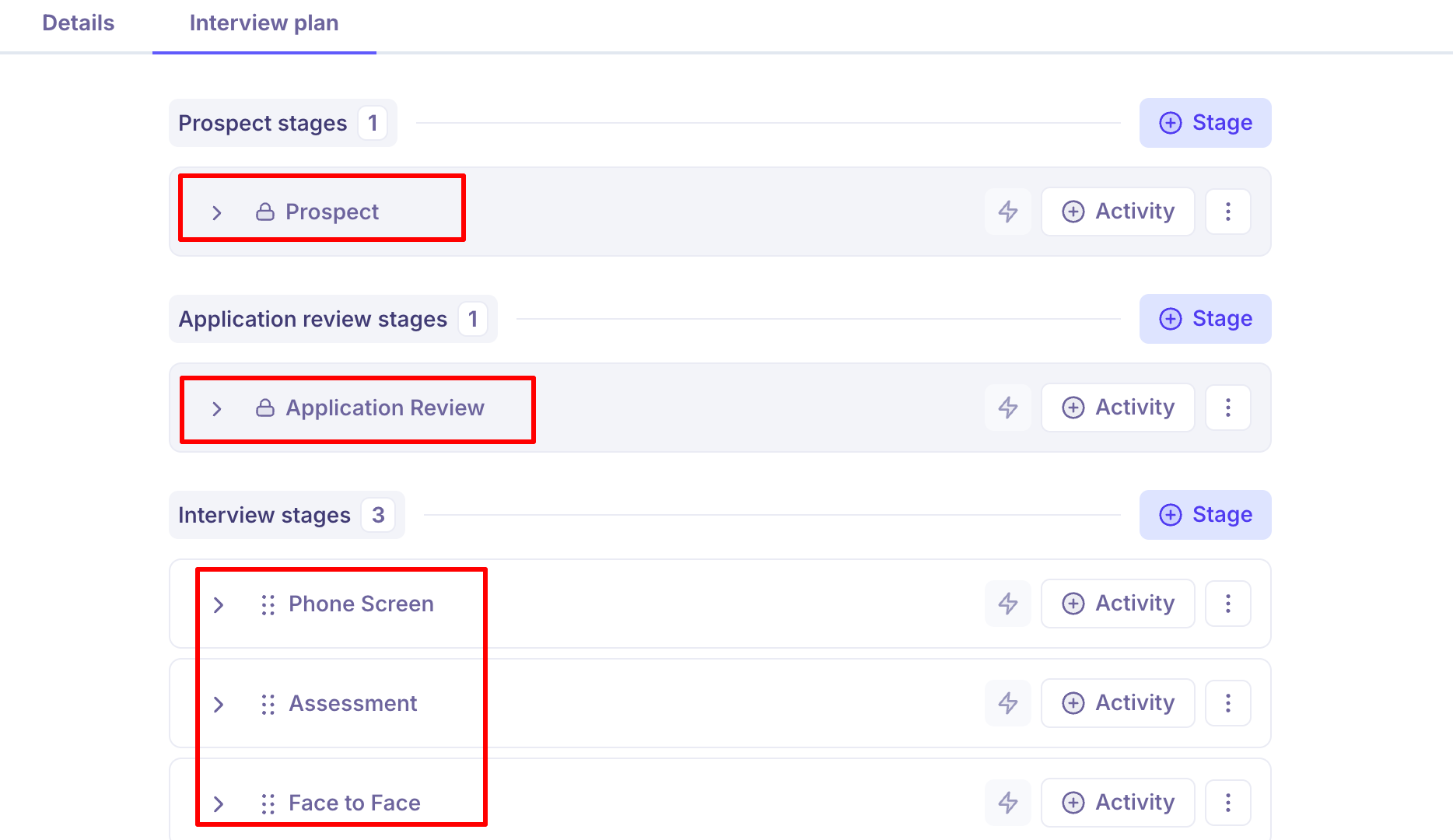
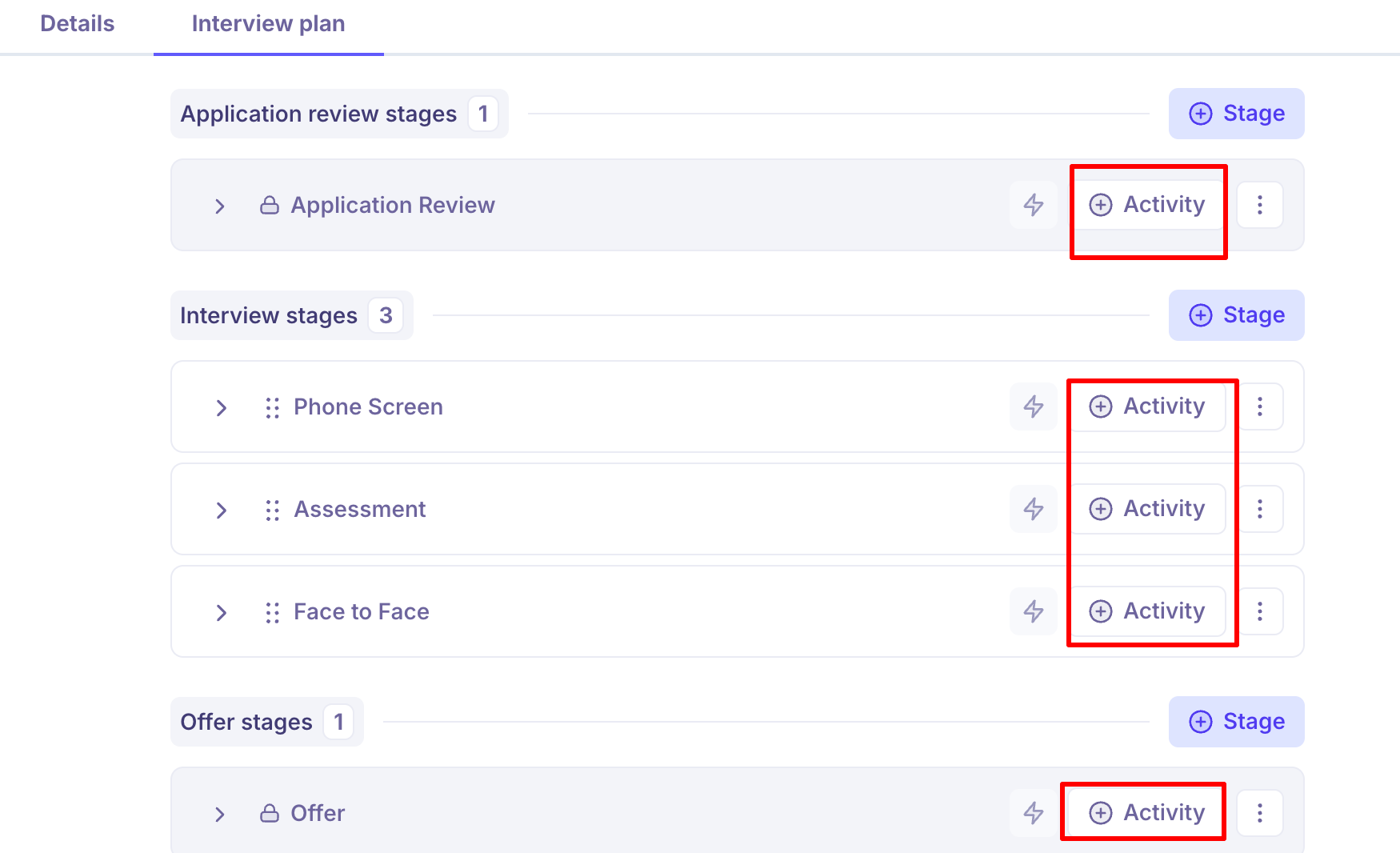
The five milestones
Every stage sits inside one of five milestone groups, in this order:
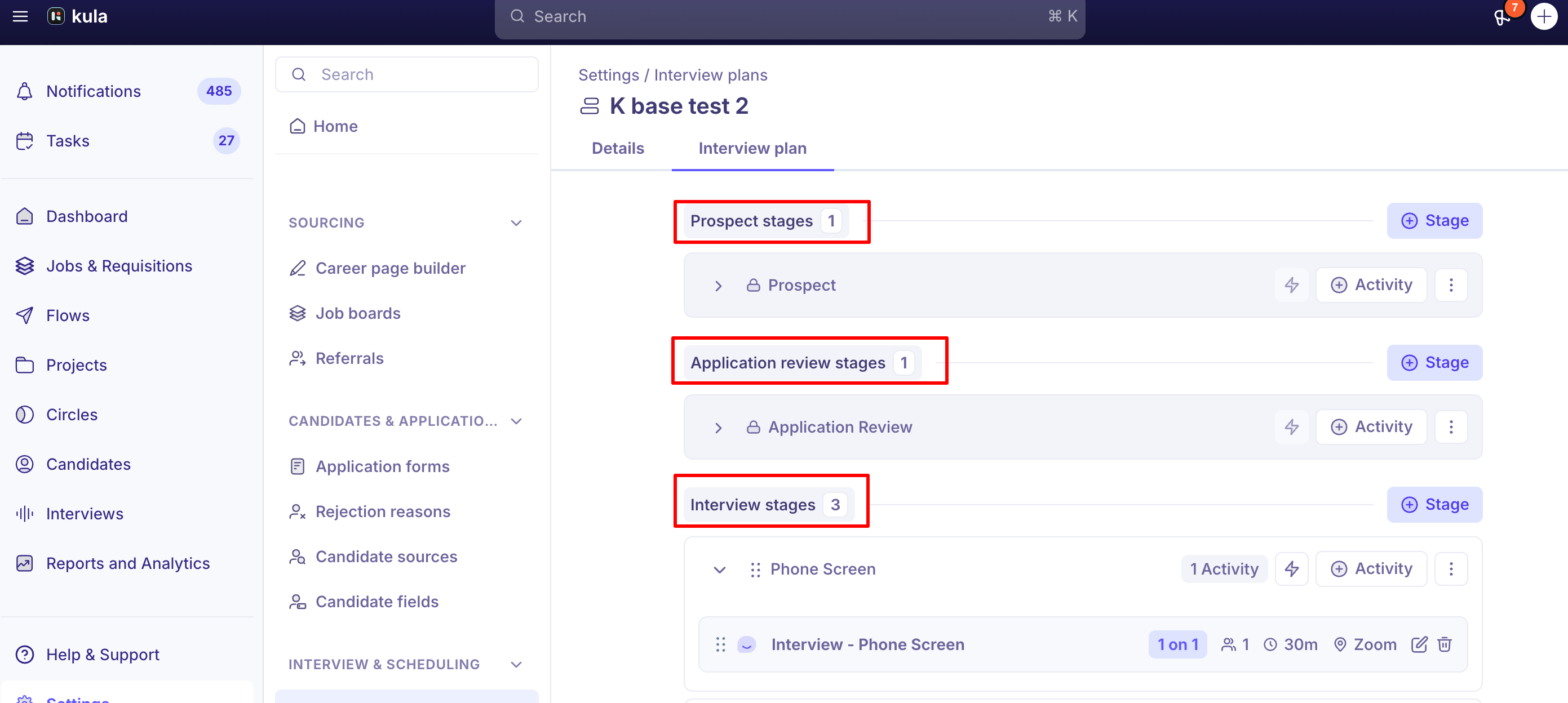
Milestone | What happens here |
|---|---|
Prospect stages | Sourced candidates who haven't been screened yet |
Application review stages | Where applicants land. AI scoring and Quick review apply here |
Interview stages | Your interview rounds: phone screens, technical rounds, onsites |
Offer stages | Full offer details show, and offers can be created, sent and edited |
Hired stages | The candidate is hired. HRIS handoff options appear here |
You can add your own stages inside any milestone, for example three interview rounds inside Interview stages. A stage stays in the milestone you create it in.
The milestone decides the behaviour, not the stage name. A stage called "Final chat" inside Offer stages still shows offer details; any stage inside Hired stages shows the HRIS options. In reports, custom stages roll up to their milestone unless you also group or filter by job. Then you see each job's own stage names.
Activity types
In a stage, click Add activity and pick one. Each activity gets a name, so you can have more than one of the same type in a stage (for example, two interviews).
Activity | Use it to |
|---|---|
Add interview | Schedule a live interview with the candidate |
Add email | Send an email to candidates in the stage |
Add internal email | Send an email to your own team members (not the candidate) |
Add assessment | Give the candidate a task and have reviewers score their answer |
Add review | Get a scorecard from reviewers without meeting the candidate |
Add survey | Send a survey to the candidate or the hiring manager |
Integration activities | Send a test or document through a connected tool, such as HackerRank or Docusign. See Activities from integrations below |
Activities other than interviews are sent when you choose, unless the stage has an automation. See Stage automation.
Creating an interview plan
Go to the job and open Settings → Interview Plan.
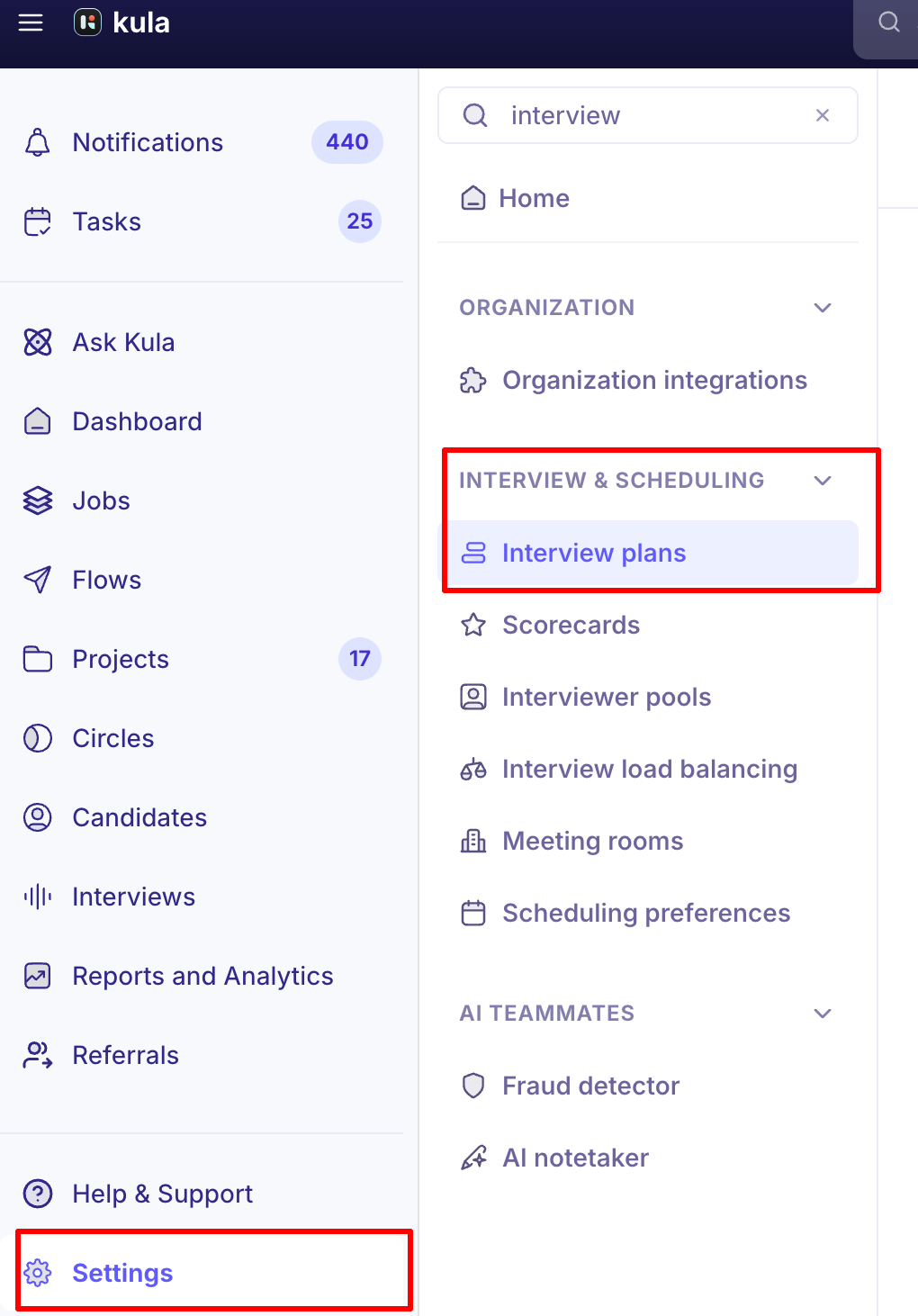
Select an existing interview plan template to start from, or use your account's default template.
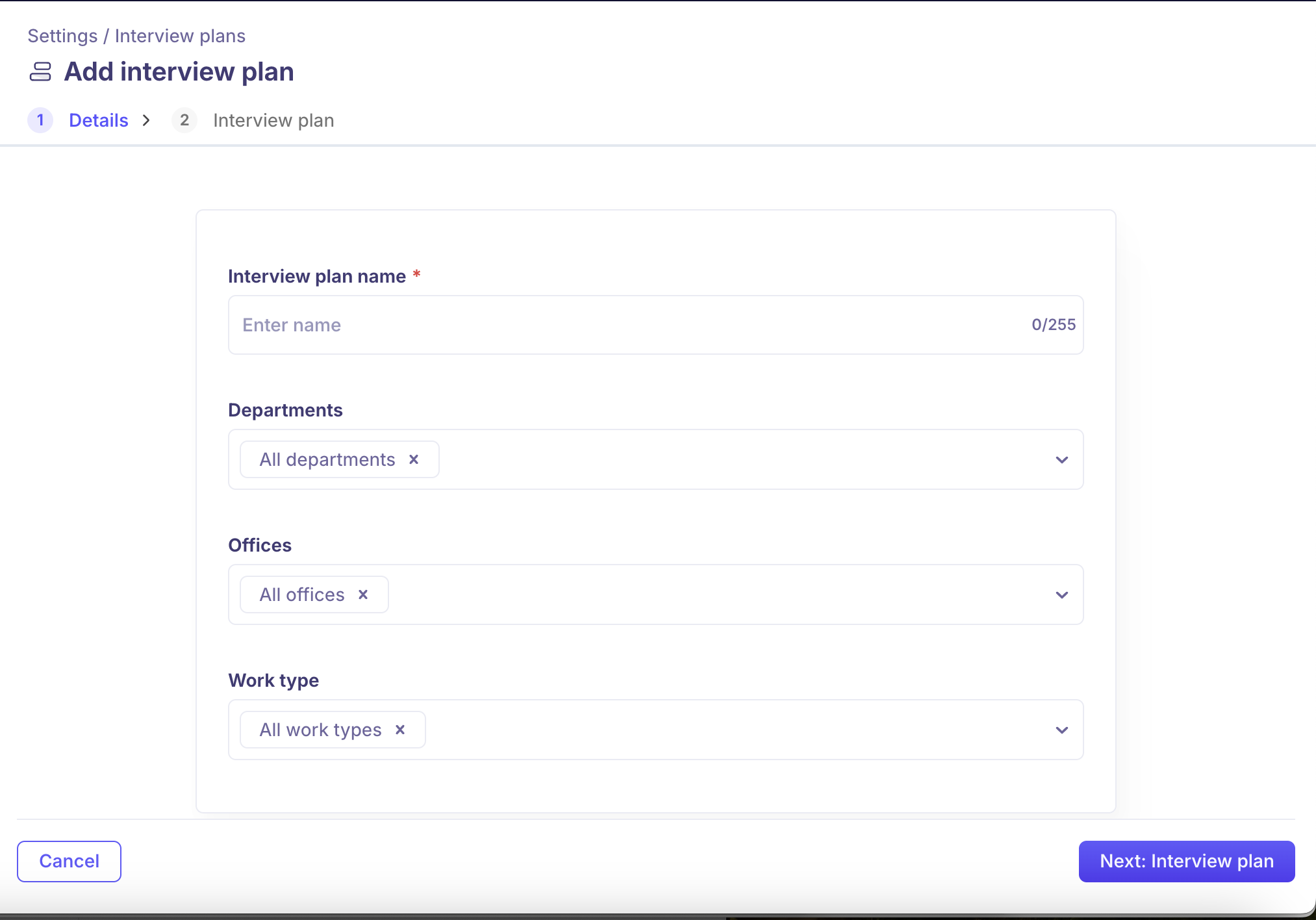
Select Add Stage and name it (for example, "Recruiter Phone Screen" or "Technical Round").
Inside the stage, select Add Activity and choose an activity type: Interview, Email, Assessment, Survey, or Review.
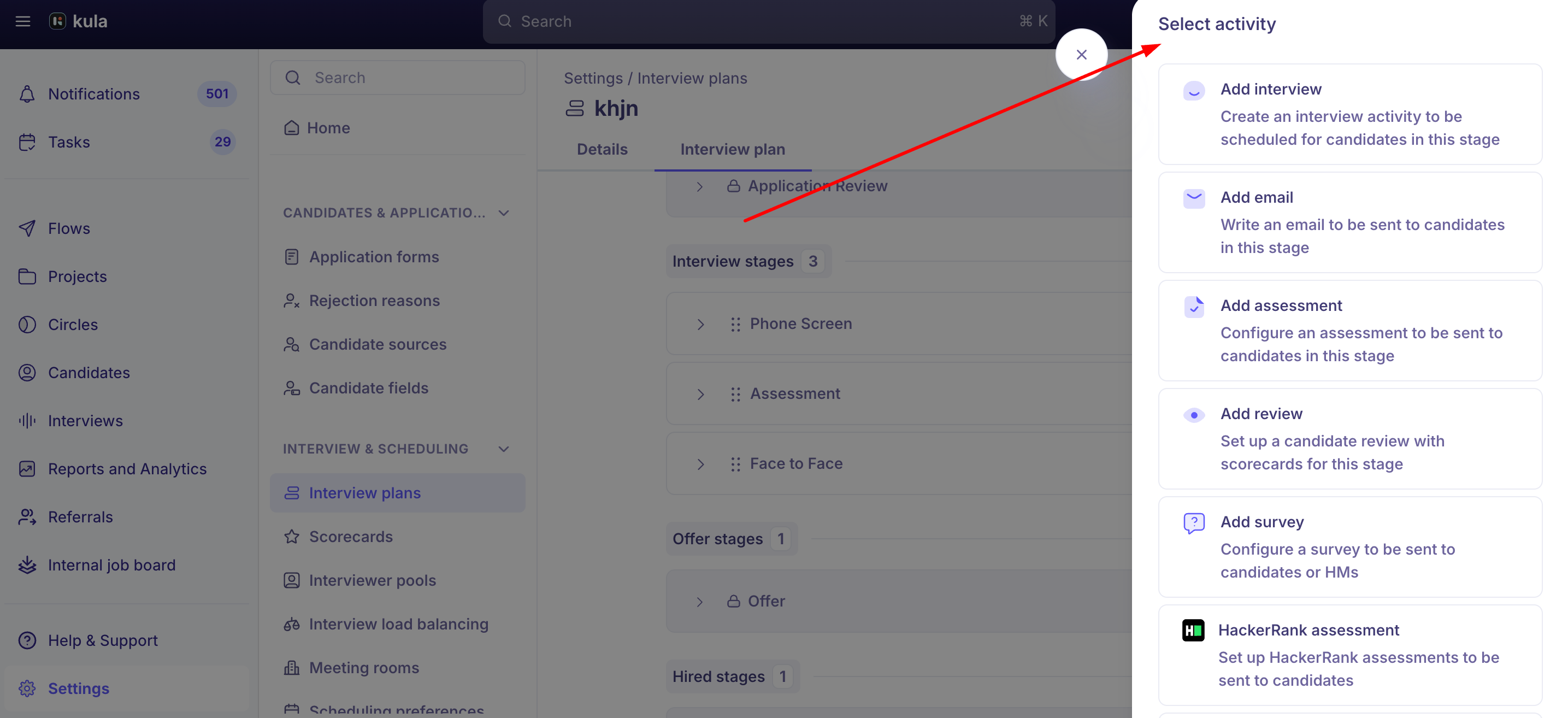
Configure the activity's details — for an interview activity, this includes the interview name, interviewers (or an Interviewer Pool), the self-schedule email template, and optionally a scorecard.
Repeat for each stage until the plan reflects your full hiring process.
Interview
An interview activity is set up in three steps: Details, Invites & emails and Scorecard. 1. Details
Interview name. What the candidate and interviewers see. It can include variables, such as the job title.
Interview type. One-on-one interview, or Panel interview for several interviewers at once.
Interviewers. Pick named people (Interviewers), or choose an Interviewer pool and Kula picks someone from it based on their working hours and calendar. See What are interviewer pools?
Calendar. The calendar the event is created on: the Organizer's calendar or a shared calendar.
Duration in minutes.
Make the interview private. Hides the event details from anyone looking at the calendar who isn't attending.
Location. Zoom, Google Meet, Teams, Phone Interview or Onsite / Physical. HackerRank and Code Interview also appear when those tools are connected (see below). For Zoom and Google Meet you also choose the Host: the Organizer or One of the interviewers.
Enable AI notetaker? Records and summarises the interview. If your admin has made the notetaker required for the job, it's switched on and can't be turned off. 2. Invites & emails
Set what goes out when the interview is scheduled. There are four tabs:
Candidate invite & email: the candidate's calendar invite and confirmation email.
Interviewer invite & email: the interviewers' calendar invite and email.
Self-schedule request: the email a candidate gets to pick their own slot.
Candidate availability request: the email asking the candidate when they're free.
For each email you choose a template, the sender (From) and the subject. You can also tick Include calendar invite as an attachment (.ics file).
Not ready to write these emails yet? See Placeholder emails below. 3. Scorecard
Turn on Enable scorecards for this interview and pick a template. Changes you make to the template here apply to this interview only. You can also turn on Allow interviewers to complete scorecards with AI?, which drafts the scorecard from the interview.
An email to the candidates in the stage, for example asking for documents before an offer. Give it an Email activity name, then choose a template or write the email, with From, subject and body (all three are required). Anything the candidate sends back is saved to their profile.
Internal email
An email to people on your team rather than the candidate. For example, it could tell the hiring manager that a candidate has reached the stage. It's set up the same way as a candidate email. Not every account has this activity yet. If you don't see Add internal email, contact support.
Assessment
A task that the candidate completes and your team scores.
Name of the assessment.
Assessment question: the task itself, up to 10,000 characters. For anything longer, attach it as a file.
Uploaded files: documents, images, text or archive files for the candidate, such as a case study brief.
Reviewer Instructions: guidance for the people scoring it.
Add reviewer(s): who scores it. At least one is required.
Scorecard: turn on Include scorecards in this assessment and pick a template.
To send a coding or skills test from a connected tool instead, use its integration activity
Review
A scorecard from reviewers without an interview. For example, a hiring manager can review resumes, or you can bring in evaluations from a previous ATS. Give it a Review name, add at least one reviewer and pick a scorecard template.
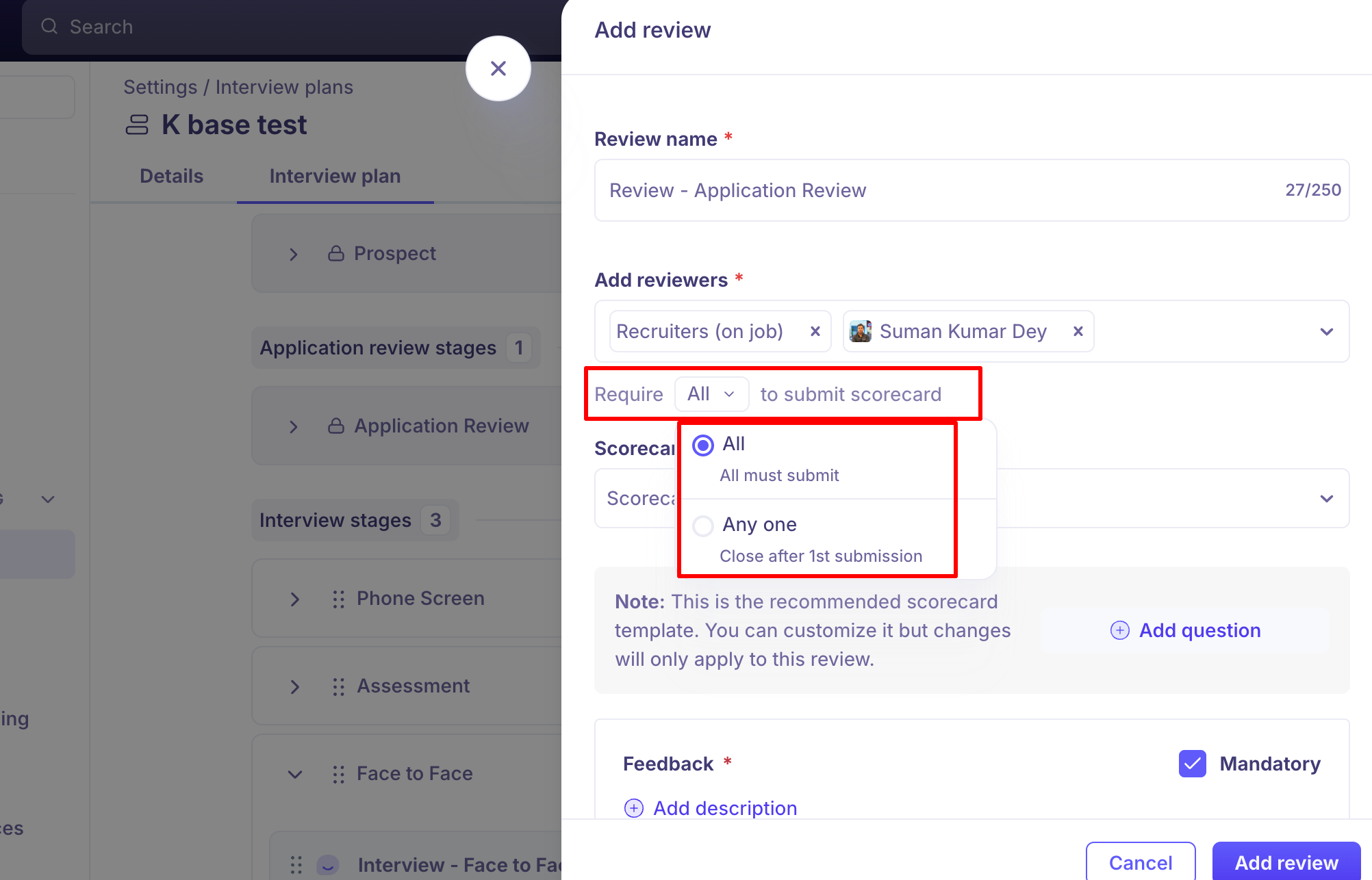
Reviewers are always named people. Interviewer pools work for interviews only. To choose whether all reviewers, any one of them, or a set number must submit, see Assigning reviewers to applications.
Survey
Sends a survey from your survey library, either a Candidate survey or an HM survey (for the hiring manager). You set the email that carries it, send it when you choose, and can send a reminder to anyone who hasn't answered yet. If your account has no surveys yet, Add survey is greyed out, so create one first. See Setting up surveys.
Activities from integrations
When an assessment or e-signature tool is connected to Kula, it adds its own activity to the Add activity list. If you don't see one, the tool isn't connected. An admin connects it under Settings → Organization → Organization integrations.
Activity | What it does | Needs |
|---|---|---|
HackerRank assessment | Sends a HackerRank test to the candidate | HackerRank connected, and a HackerRank for Work account for the person adding it |
HackerRank interview | A live coding interview. It's set up like an interview, with HackerRank as the location and a HackerRank Template | As above |
HackerEarth assessment | Sends a HackerEarth coding test | HackerEarth connected |
Criteria Corp assessment | Sends Criteria Corp aptitude, skills or personality tests | Criteria Corp connected |
CodeInterview assessment | Sends a CodeInterview coding assessment. You can also pick Code Interview as the location of a live interview | CodeInterview connected |
Docusign e-sign document | Sends documents such as NDAs for the candidate to e-sign before the offer (see below) | Docusign connected, and the activity turned on for your account |
For each test activity, you choose the test from your account with that provider. You can also add a scorecard (Include scorecards in this assessment) so your team scores the result in Kula. Docusign e-sign document, in two steps:
Upload documents: up to 10 .docx files (10 MB each) that contain Docusign tokens. Kula lists the tokens it found. At least one document needs the signature token, otherwise the candidate has nowhere to sign. Documents with invalid tokens have to be fixed before you can continue. Use Preview on Docusign to check them.
Add details: the company signer, the signing order and the email the candidate receives.
After it's sent you can Send reminder, which re-sends the original signing email. Edit document and Delete document both void the envelope in Docusign, which emails everyone it went to and can't be undone.
This activity is for documents outside the offer. To send the offer letter itself for signature, see Setting up e-signature.
For how each tool connects, see the Connect … to Kula articles in the Integrations collection.
Scorecards
Each interview, review or assessment can have a scorecard: edit the activity, open its Scorecard tab and pick a template. Interviews scheduled from the plan get their scorecard automatically; an interview added outside the plan needs one added by hand.
To build scorecard templates, see Creating scorecard templates.
To control whether interviewers see each other's feedback (Never, After they submit their own scorecard or Always (without overall evaluation)), see Scorecard visibility and permissions.
Requiring a minimum number of scorecards
For Review and Assessment activities with two or more reviewers assigned, you can set a completion rule instead of requiring every reviewer to submit:
All (default) — every assigned reviewer must submit.
Any one — once the first reviewer submits, the remaining scorecards are automatically closed.
At least X — set a custom minimum; once that many scorecards are in, the rest close automatically
Templates
Interview plan templates give every new job a starting plan. Scope a template to departments, offices and work types, and it's picked automatically for matching jobs; your default template covers everything else.
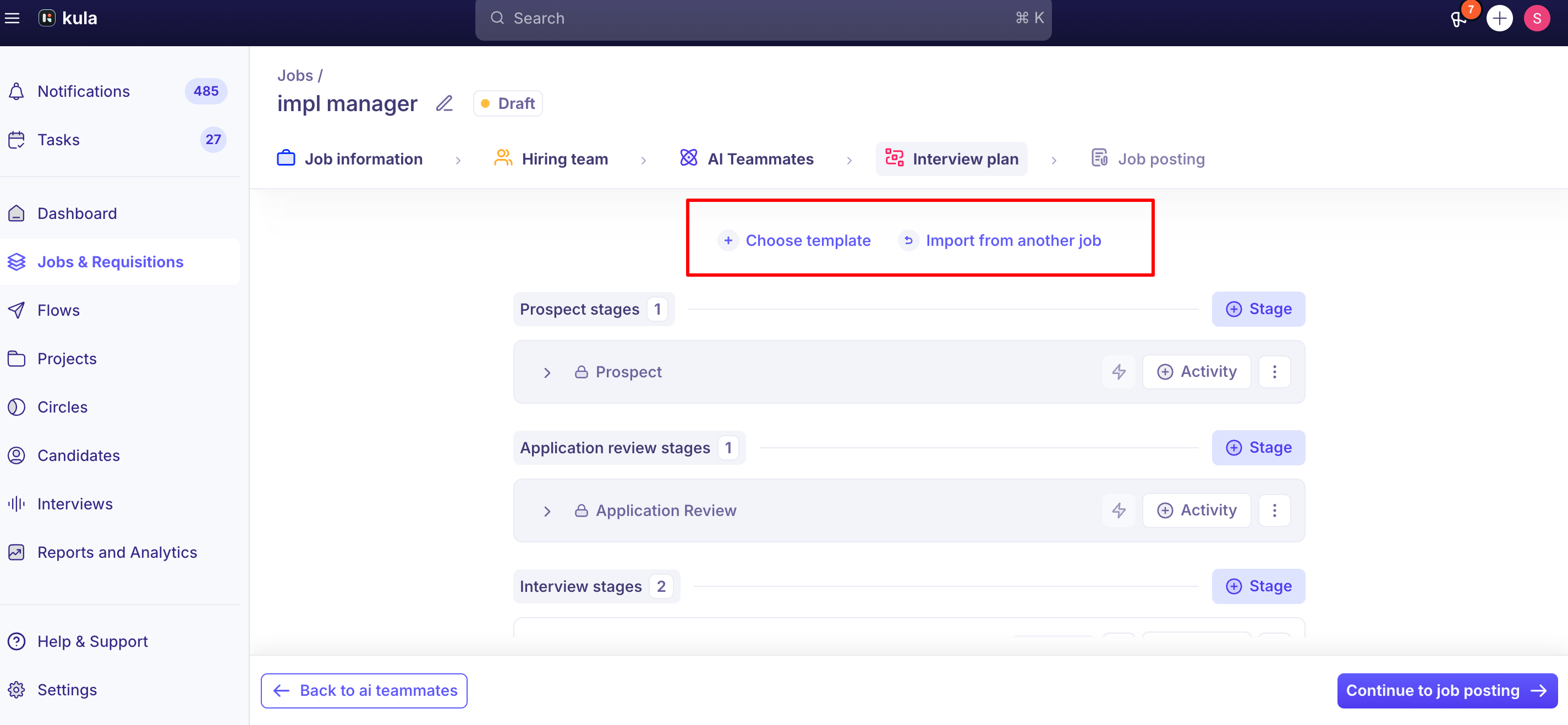
To give a job a plan, use Choose template or Import from another job, then adjust its stages and activities. See Creating a new job, Step 4. The job gets its own copy: later changes to the template don't reach it.
To reuse a template with small changes, clone it.
Placeholder emails
Still writing your candidate emails? Save an interview activity with a placeholder email that contains only the required link, such as {interview.self_schedule_link} or {interview.candidate_availability_link}. It's only sent if you send a self-schedule link or an availability request for that activity.
Editing an existing plan
You can edit stages and activities directly within the Interview Plan settings for a job. Existing plans can also be cloned or archived, but not permanently deleted — see Good to know.
Two ways to reuse a plan
Clone a template and re-use the same by making minor changes
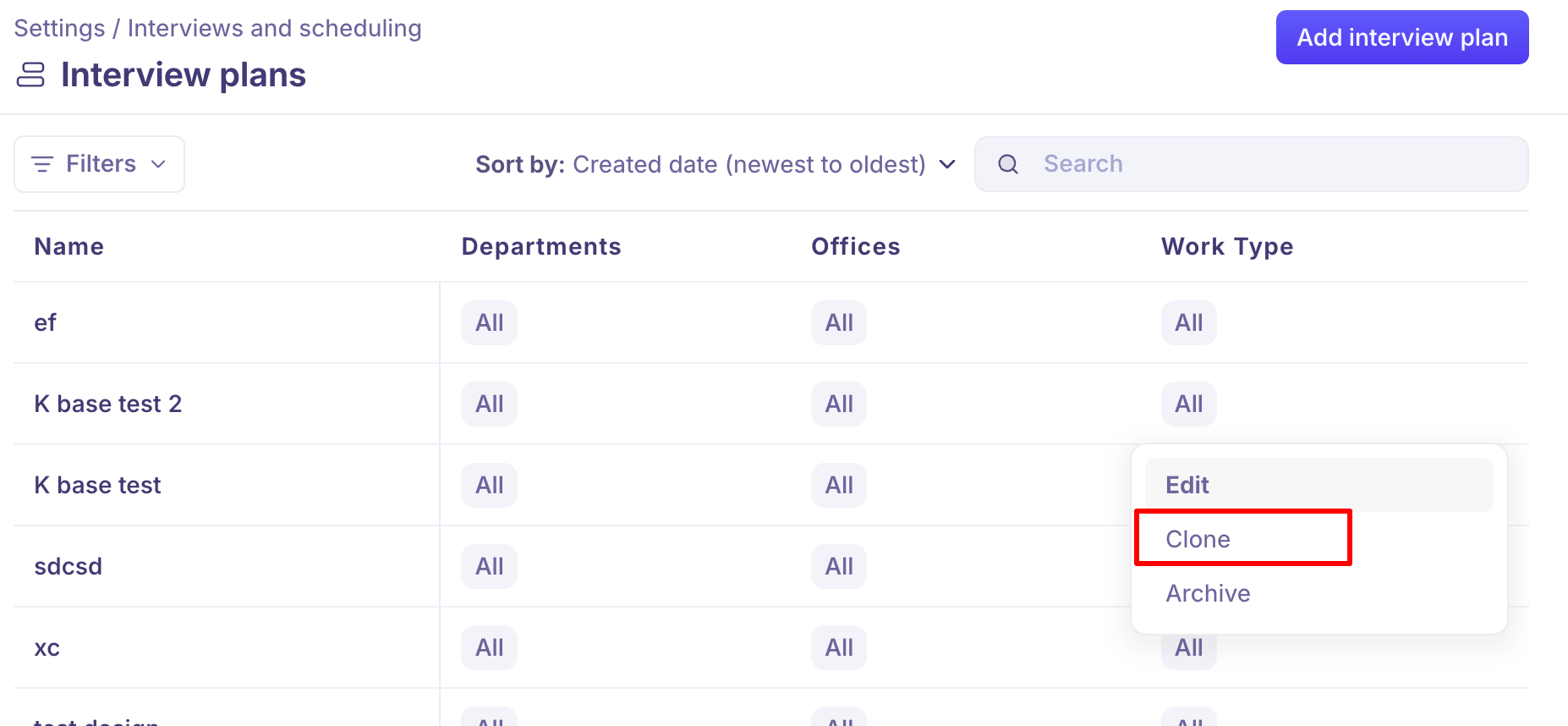
Within a job, you can choose from existing interview plans by selecting "choose template" or import an interview plan from another job too
Good to know
The schedule option appears once the candidate is in the stage. If you can't see it, move them into the stage, or check the stage has an Interview activity.
Plans can't be deleted. Edit, clone or archive them instead.
Reorder activities by dragging them within a stage. It's locked while the stage has an automation.
Activities can't be switched off. To stop using one, remove it.
Plan names can repeat. Kula doesn't warn about a duplicate name, so check the list before creating one.
A live job keeps its plan. You edit it in place; you can't swap it for a different template.
Reviewers are assigned directly. Interviewer pools apply to interviews, not reviews.
FAQ
How do I add a plan to a new job? In the job's Interview Plan settings, use Choose template or Import from another job, then adjust it. See Creating a new job. How do I add an activity? Open the stage, click Add activity and choose one: interview, email, internal email, assessment, review, survey, or an activity from a connected tool. Why don't I see HackerRank (or another tool) in the activity list? The tool isn't connected. An admin connects it under Settings → Organization → Organization integrations. Can I have two interviews in one stage? Yes. Add as many activities as you need, and give each its own name. How do I get a scorecard without an interview? Use a Review activity. Can I delete a plan? No. Archive it. Why can't I schedule an interview for a candidate? They're not in the stage yet, or the stage has no Interview activity. Need help? If you have questions or need assistance, reach out to us at support@kula.ai or use the in-app chat.