Power-user tips for recruiters
Last updated: September 23, 2026
A handful of confirmed shortcuts and lesser-known features that speed up the parts of Kula recruiters use every day: reviewing candidates, tagging and moving people in bulk, filtering lists, and sourcing from LinkedIn, GitHub and Gmail.
Who can do this: Recruiter — most tips below also apply to Admin, Super Admin, and Hiring Manager wherever they have access to the same page.
Where to find it: across Quick Review, Candidates, Contacts, Flows, and the Kula browser extension.
Move faster through Quick Review
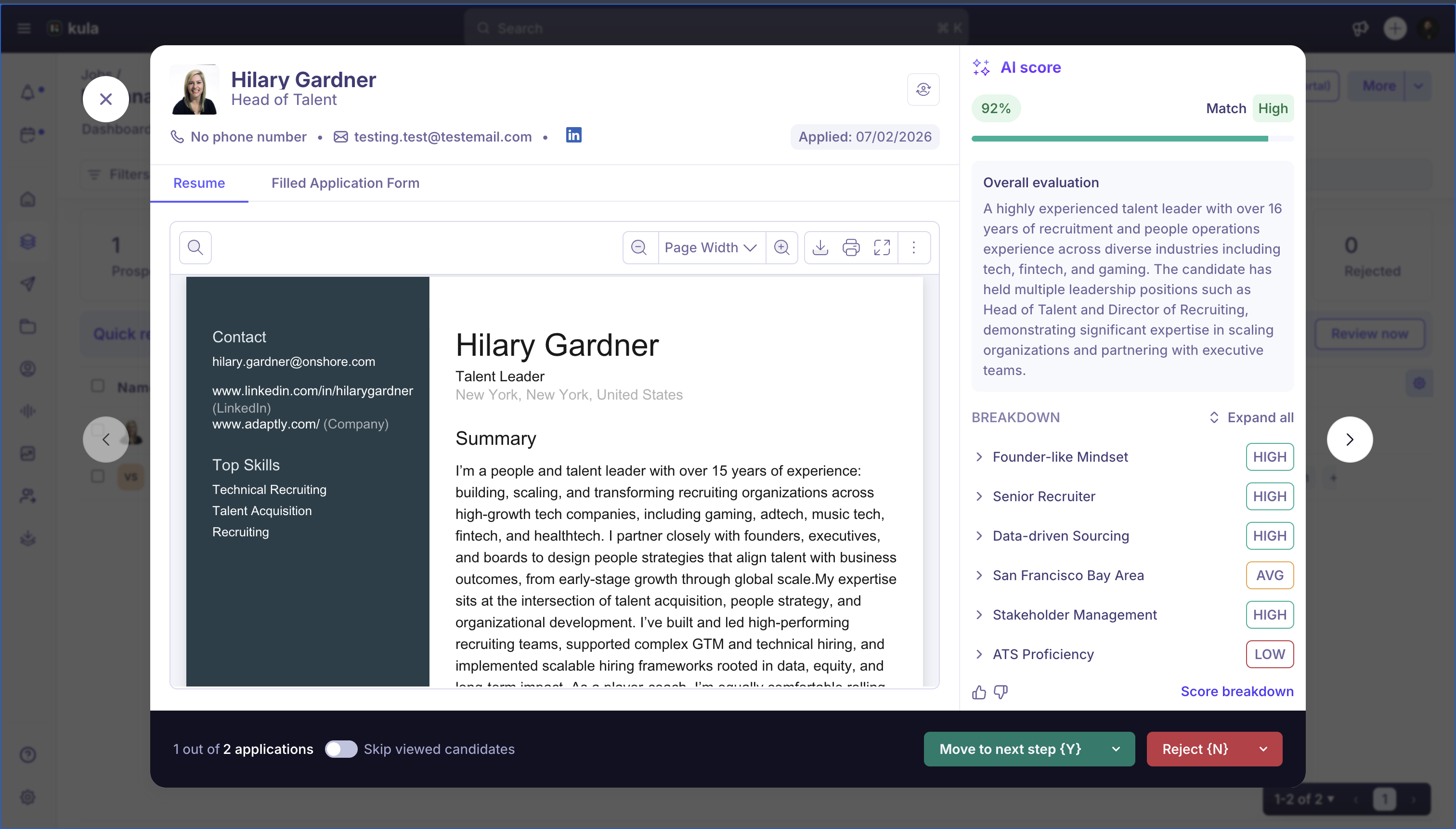
Press Esc to close out of Quick Review from the keyboard, without reaching for the mouse.
Whichever tab you're on — Resume or Application form — stays selected as you move to the next candidate, so you're not re-clicking the same tab for every profile.
Open a candidate's LinkedIn profile directly from inside Quick Review — you no longer have to leave the review flow to check it, the way List View has supported for a while.
Jump anywhere with global search
Press Cmd+K (or Ctrl+K on Windows) from anywhere in Kula to open global search, instead of navigating through menus. For every shortcut, see the keyboard shortcut reference.
Do it once, apply it to many
On Contacts: select multiple contacts and apply a tag to all of them in a single action, instead of tagging one at a time.
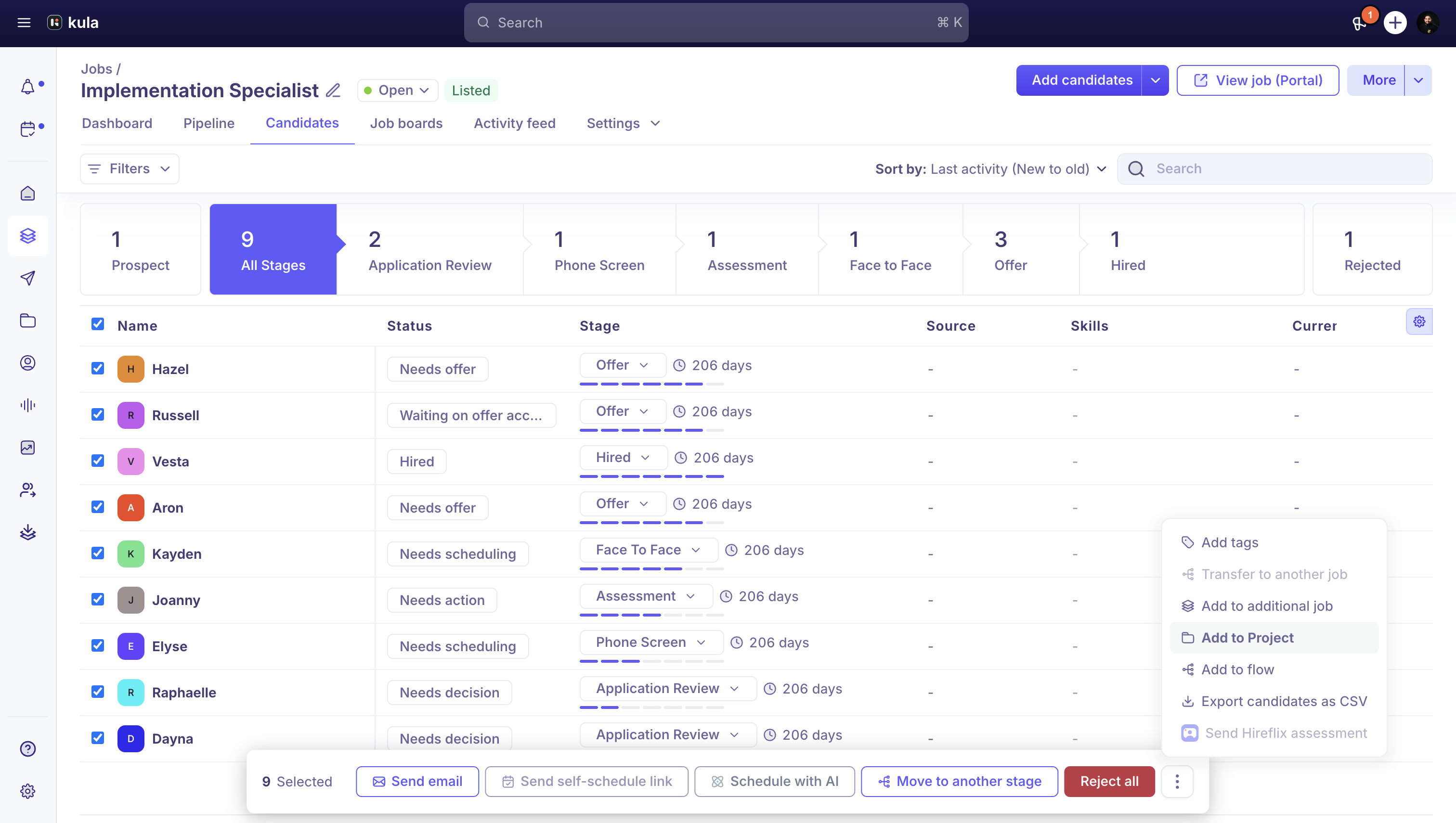
Inside a job's candidate list: select multiple candidates and, in one action, move them to another stage, reject them, add tags, send an email, add them to another job, add them to a flow, add them to a project, bulk self-schedule them, or export them to CSV. See Bulk actions on candidates.
Between flows: move a group of candidates from one flow to another in bulk, instead of re-adding them one at a time.
Filters that stay put
Filters you apply on the Jobs list and Jobs → Candidates stay applied as you navigate away and back — you don't need to reapply them each time. Resume search also supports multi-word queries and a choice between matching all words or any word.
Source straight from LinkedIn, GitHub and Gmail
The Kula browser extension (Kula Everywhere) works on LinkedIn, GitHub, and Gmail profiles. Open a profile on any of those three, click the extension, and it pulls the details straight into a Kula candidate or contact record — including an Add to job picker so you can attach them to a role without switching tabs. If it can't auto-extract a profile, it falls back to letting you create the record manually instead of failing silently.
Good to know
The browser extension only supports LinkedIn, GitHub, and Gmail today. Other sourcing sites aren't supported yet.
FAQ
Can you help me with how to add the extension on Chrome so we can extract a candidate's LinkedIn profile into their candidate profile?
Install the Kula browser extension (Kula Everywhere) from the Chrome Web Store, then open the candidate's LinkedIn, GitHub, or Gmail profile and click the extension icon — it adds or enriches the candidate or contact record directly, no copy-pasting required.
Need help?
If you have questions or need assistance, reach out to us at support@kula.ai or use the in-app chat.